Set up a team vacation calendar in Outlook,and know who's out before you promise a date.

You already pay for Outlook, your team already has it open, and it can show who's out this week if you set it up properly. This is how I'd do it for a six-person team today: one shared calendar, US holidays on it, PTO entered as out of office, and a view that puts everyone's days next to yours.
It takes about twenty minutes, nobody installs anything, and the whole team can keep it up to date. At the end I'll show you where Outlook runs out, so you can decide whether it's enough for your team.
What you'll end up with
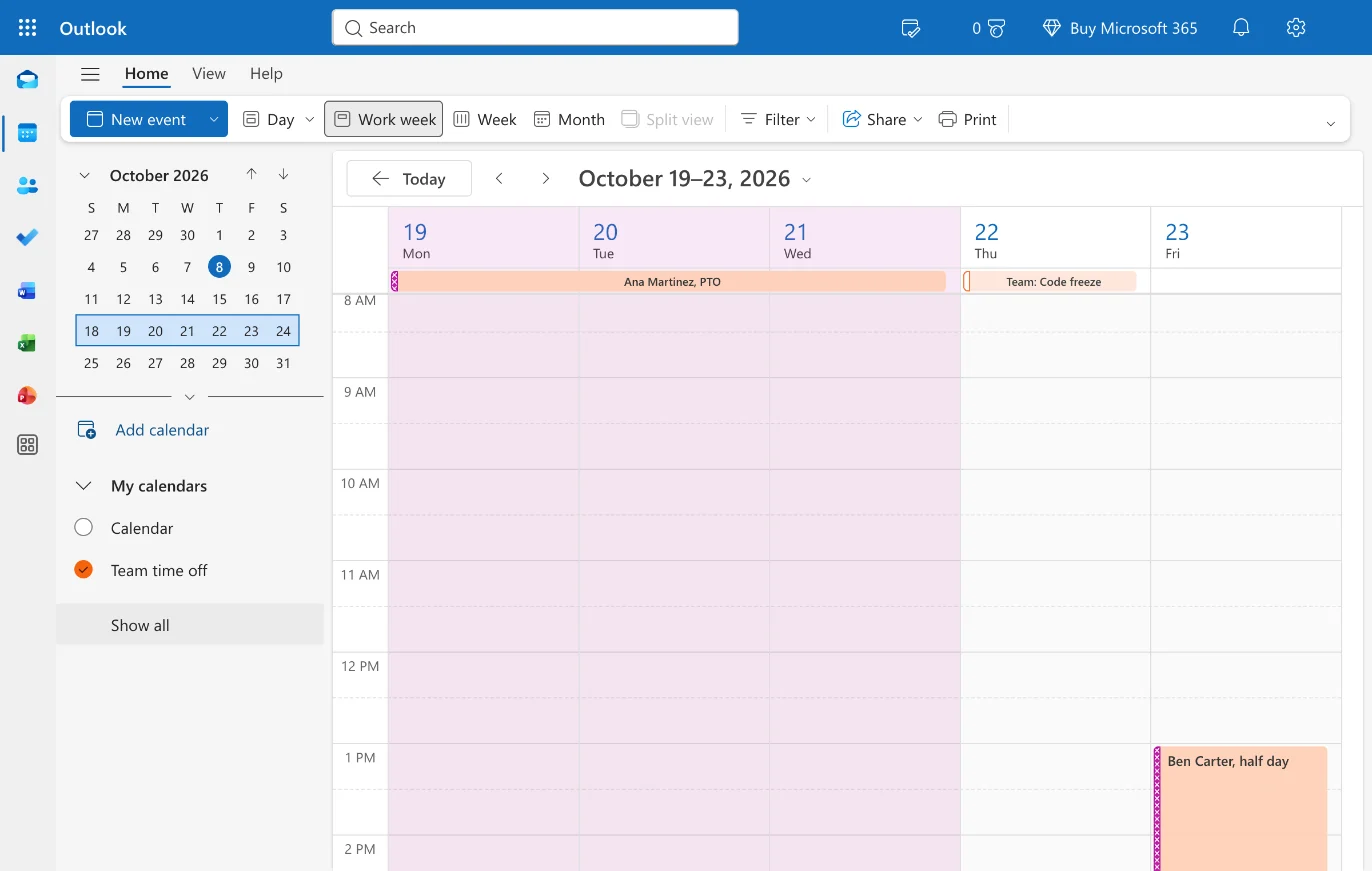
Here's the finished calendar for one week: Ana out Monday to Wednesday, Ben on a half day Friday, and a code freeze on Thursday that everyone can see.
Step 1
Add US public holidays to Outlook
Open Calendar in Outlook on the web. In the left pane click Add calendar, pick Holidays in the dialog, type United States in the filter box and tick it. Outlook adds a read-only calendar called United States holidays under My calendars, with the eleven federal holidays and a few observances.
In classic Outlook for Windows the same thing lives under File, Options, Calendar, Add Holidays.
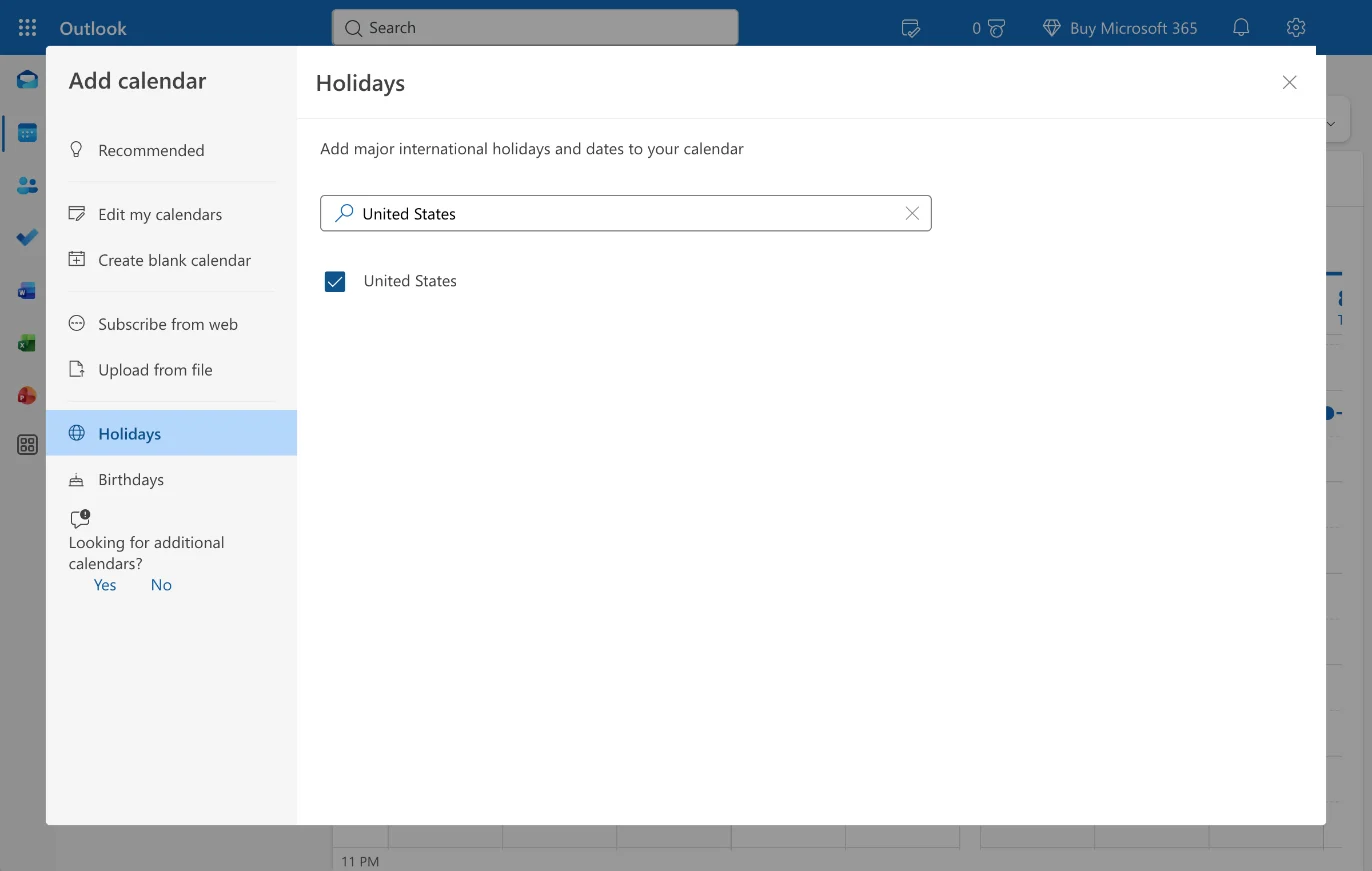
Add calendar, Holidays, tick United States. 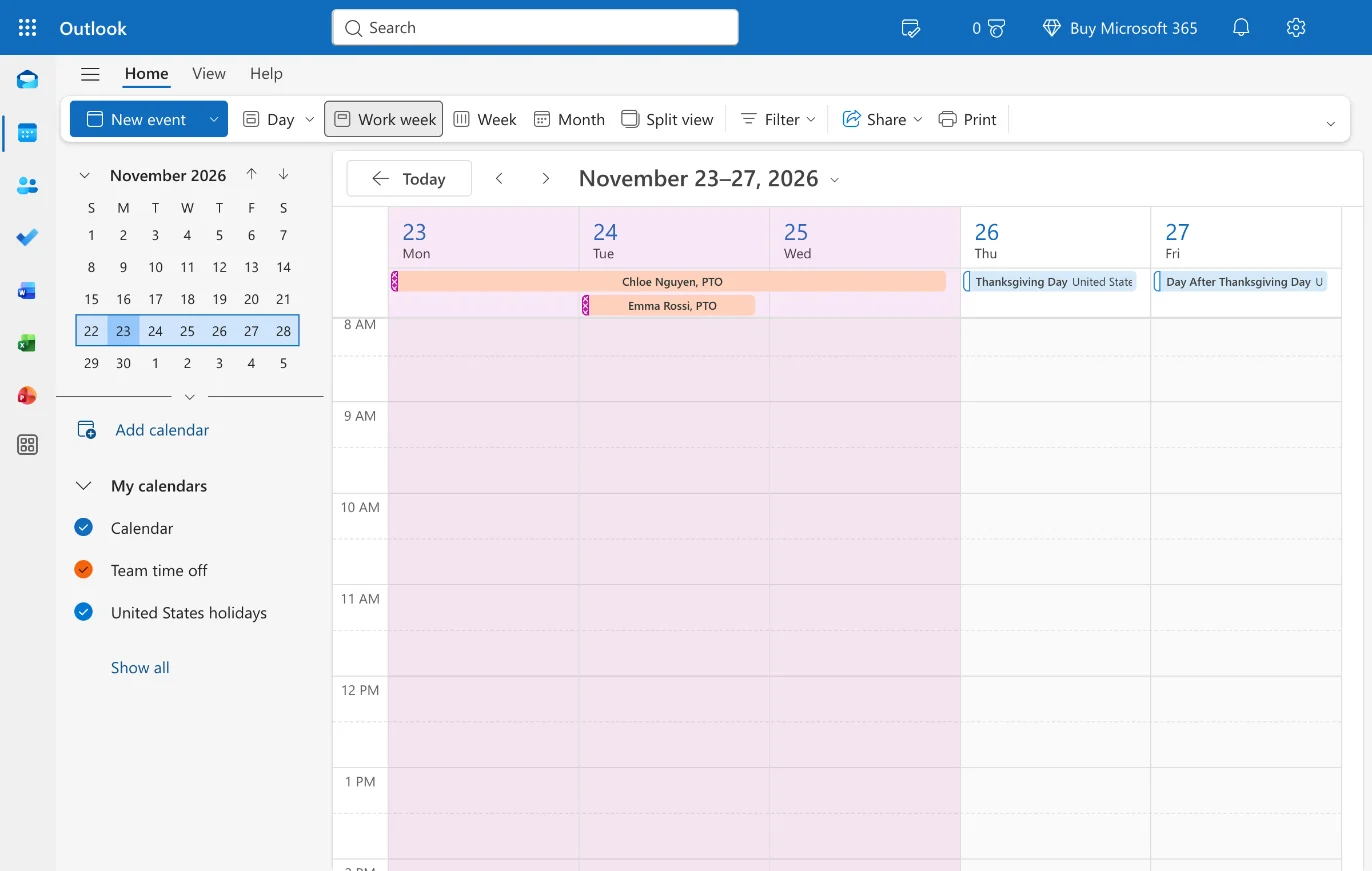
Thanksgiving week with the holidays calendar and the team calendar shown together. Chloe and Emma are out early in the week, and the office is closed Thursday and Friday. Step 2
Create one shared calendar the whole team can edit
Click Add calendar again and pick Create blank calendar. Name it Team time off, choose a color nobody uses for their own calendar, pick a charm if you like, leave Add to on My calendars and click Save. The dialog warns that the calendar won't be visible to others yet; that's the next step.
Right-click Team time off under My calendars (or hover it and click the … button) and choose Sharing and permissions. Type each teammate's email address, set them to Can edit, and click Share. Give your manager or PM Can view all details. Everyone gets an email with a link that adds the calendar to their Outlook.
If your company has Microsoft 365 and your team already has a group (the kind with a Teams channel), that group has its own calendar and every member can already edit it. Use that instead of a new calendar and skip the sharing.
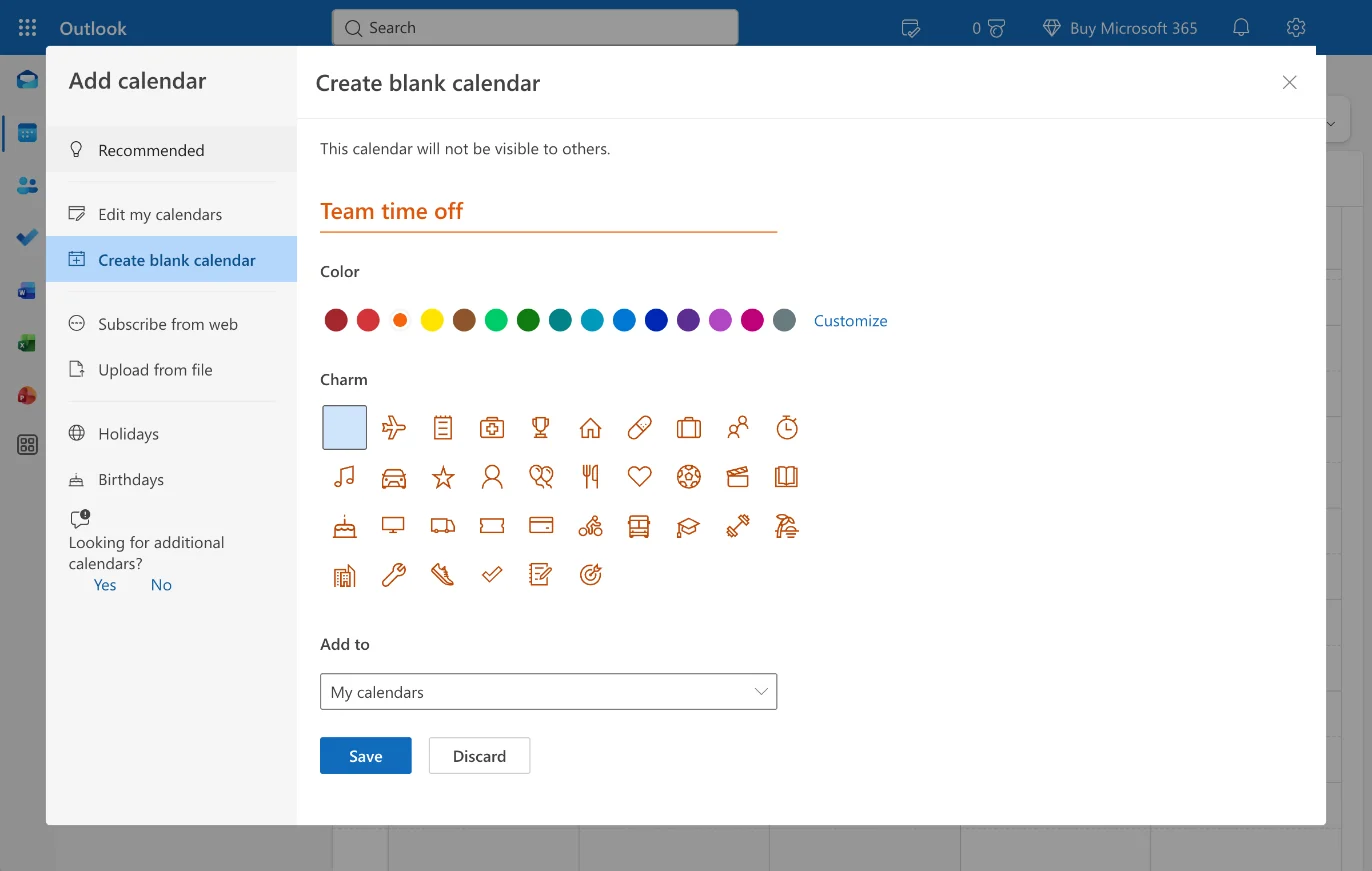
Create blank calendar: a name, a color, and Save. 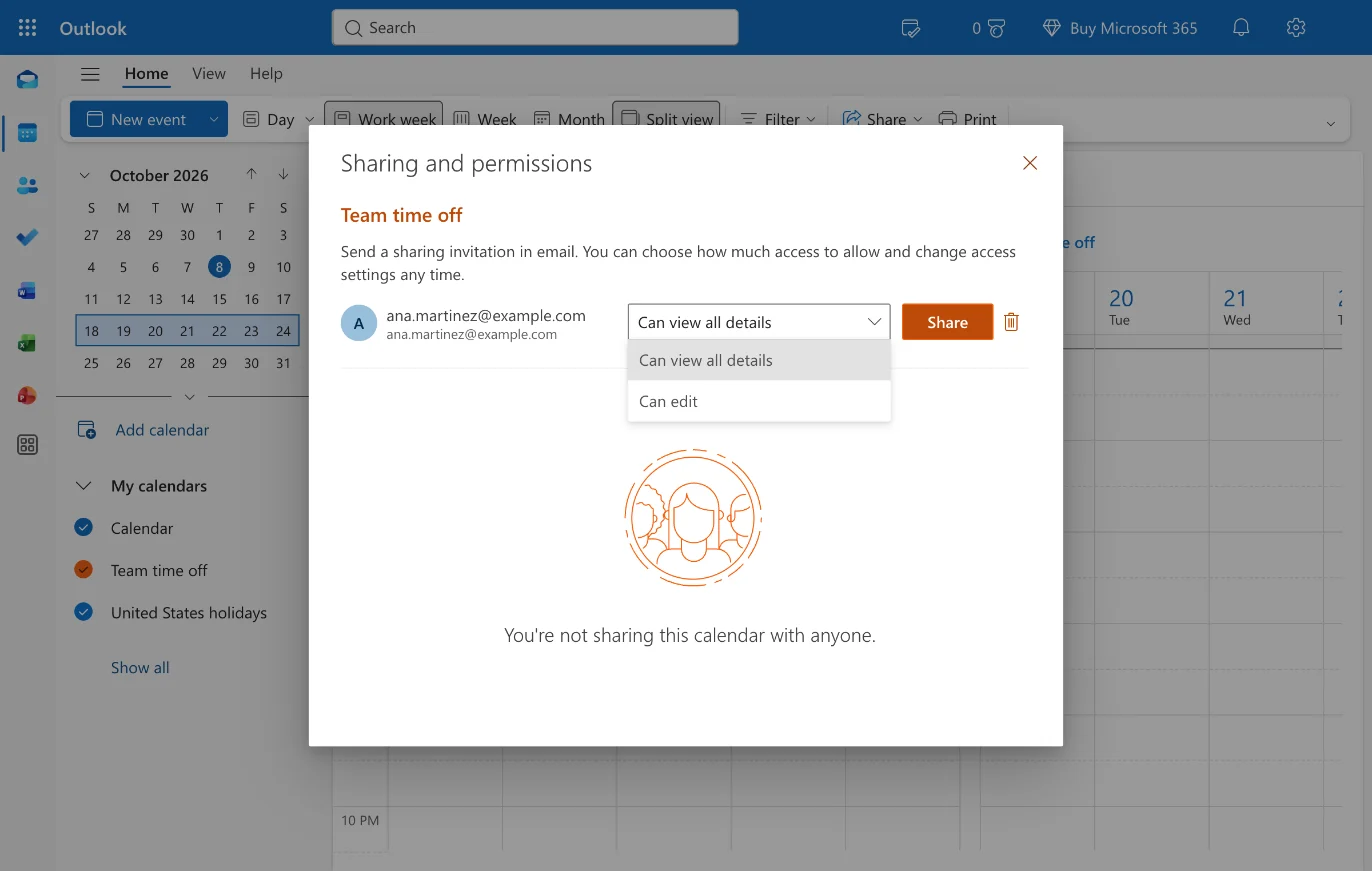
Sharing and permissions: add each person and set them to Can edit. Step 3
Have people enter PTO as all-day events marked out of office
Ask everyone to put their time off on Team time off, not on their personal calendar. Click New event, pick Team time off in the calendar picker at the top of the form, and type the person's name and the kind of absence, like Ana Martinez, PTO. Click the date line, tick All day and set the start and end dates. Then open the show as dropdown in the toolbar (it says Busy, or Free once All day is ticked) and pick Out of office. Save.
Half days are timed events, Ben Carter, half day from 1:00 PM to 5:00 PM, also shown as Out of office. Remote days, if your team tracks them, go in as Working elsewhere so they don't look like absences.
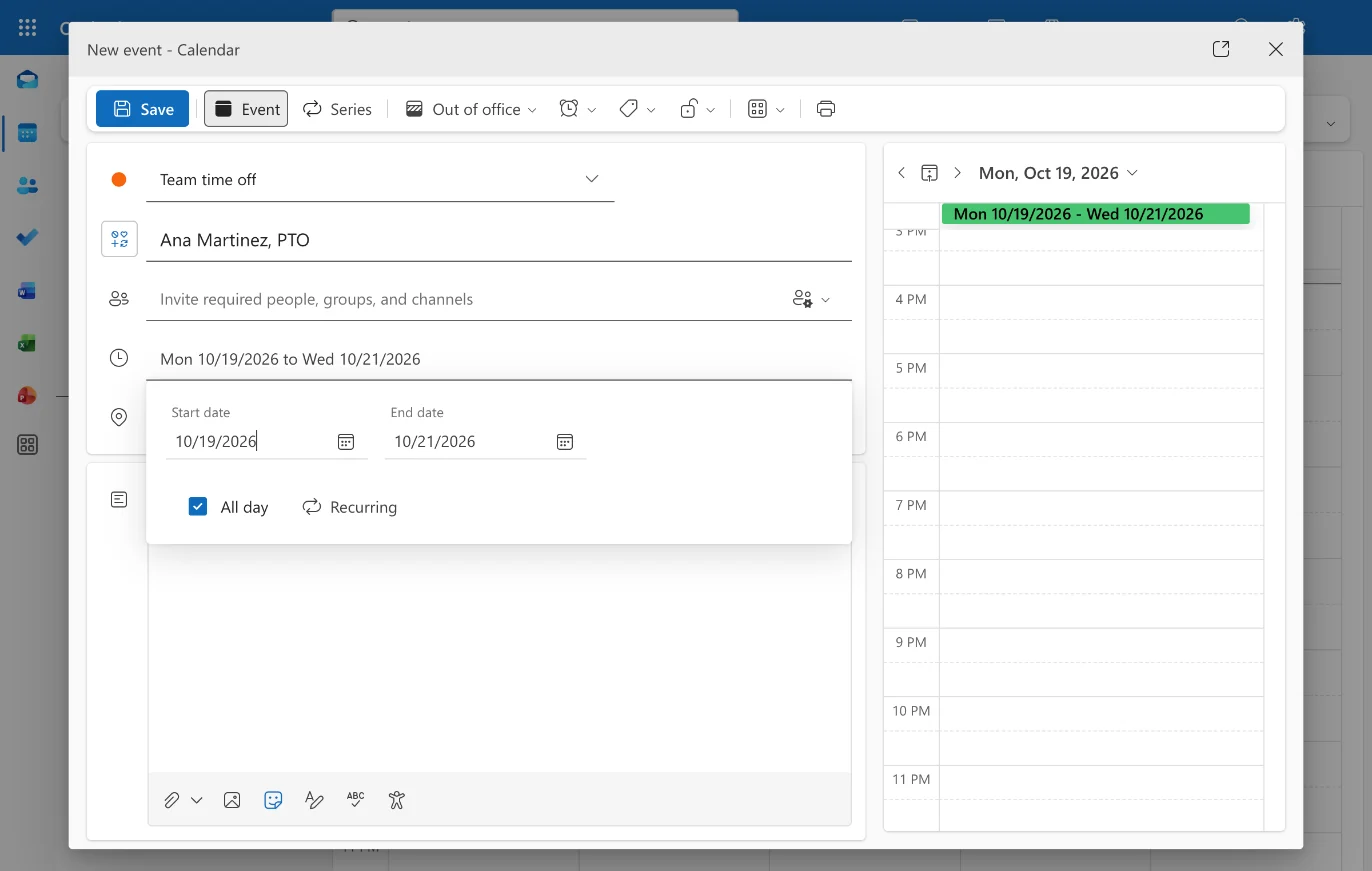
A PTO entry: the team calendar, a name-first title, All day, and show as Out of office. Step 4
See who's out this week
Tick Calendar, Team time off and United States holidays in the left pane, then switch to Work week. Outlook lays the team's all-day entries along the top of each day in the team calendar's color, above your own meetings. If the overlay gets busy, click Split view in the toolbar to see the calendars side by side.
Add the same calendar on your phone: in Outlook mobile it shows up once it's shared with you. Before you set a meeting or a release date, the Scheduling Assistant now also shows the team's out-of-office time as blocked.
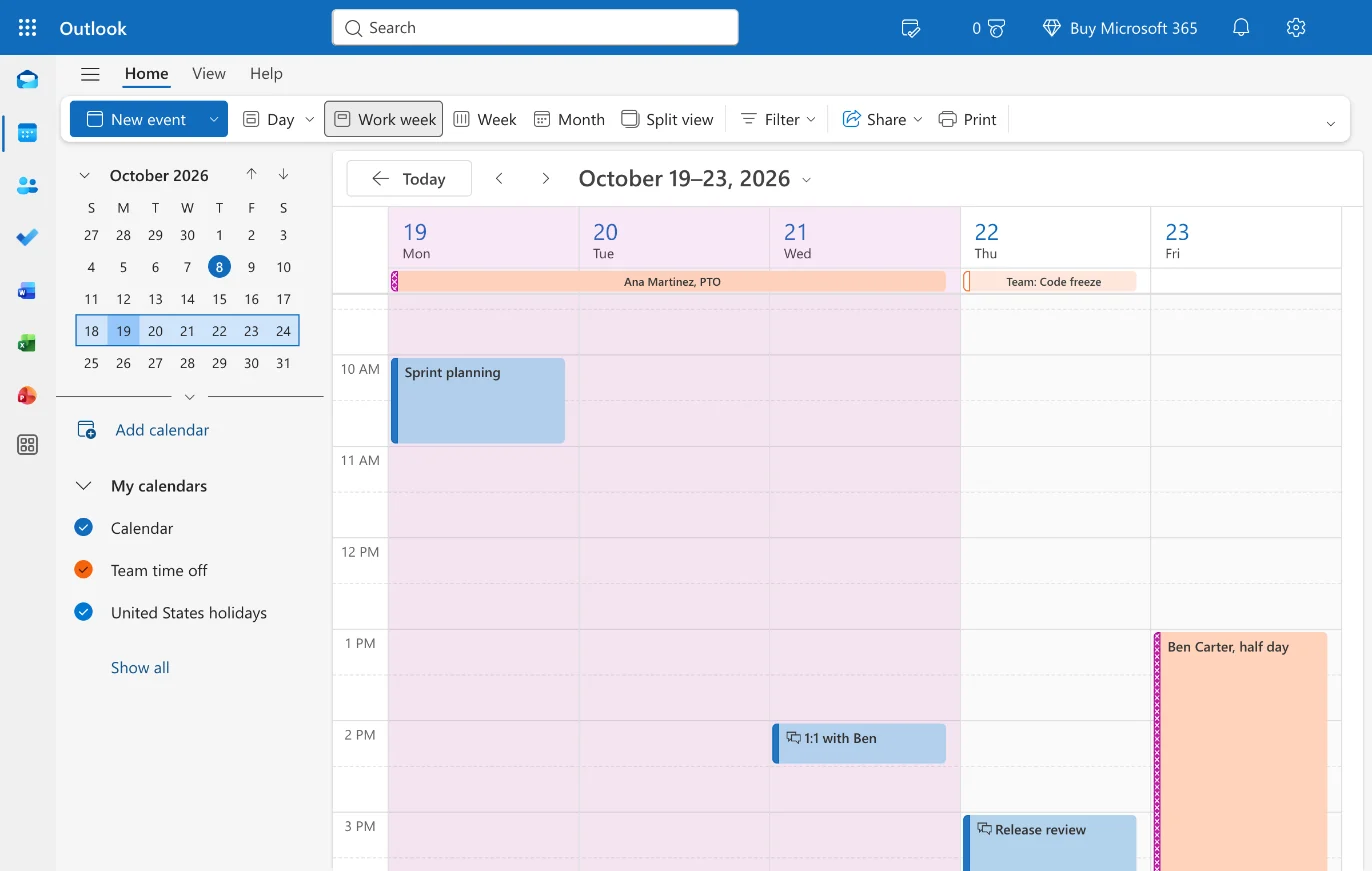
Your meetings and the team's time off on one week. The 1:1 with Ben is fine; the release review on Thursday lands on the code freeze. Step 5
Put company days on the same calendar
Code freeze, release week, the offsite, the company holiday that isn't a federal one: they all go on Team time off as all-day events with a Team: prefix, like Team: Code freeze or Team: Release 4.2. Leave show as on Free, not Out of office, so they don't block anyone's availability.
Now one calendar answers both questions a team lead asks every week: who's out, and what's happening.
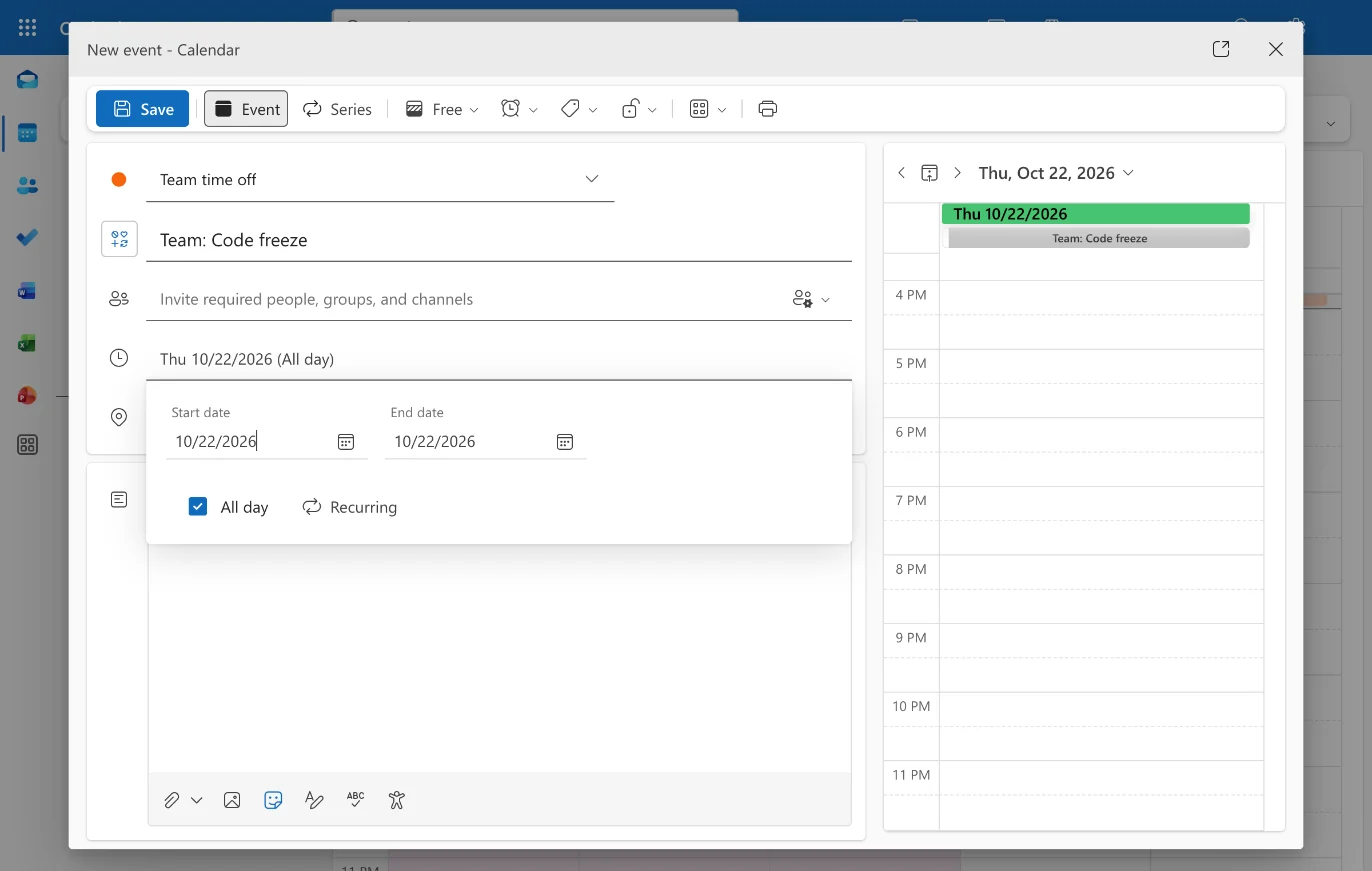
A company day: the Team: prefix, All day, and show as Free.
Six tips that make it stick
One color category per person
Right-click an event, Categorize, and give each teammate a color. The week reads at a glance even when titles are cut off.
Put the time zone in the title for remote people
“Chloe Nguyen, PTO (Pacific)” saves the Eastern half of the team a mental conversion.
Recurring entries for standing days off
Someone works four days a week? Make their Friday a weekly recurring event so nobody books them for a Friday demo.
Publish the calendar for people outside Outlook
Settings, Calendar, Shared calendars, Publish a calendar gives you an ICS link that Google Calendar and Apple Calendar can subscribe to.
Check it in Monday standup
Thirty seconds on the week view at the start of the week catches most “oh, I didn't know” moments.
Export before you leave
If you change teams or companies, export the calendar as an .ics file so the history goes with the team, not with your account.
Outlook is enough for a small team.Here's where it stops.
If you have five people in one time zone and no release dates to protect, stop here. The shared calendar does the job. These are the three places it broke for me as the team grew, and what the same week looks like on a Forgot board.
Everyone shares one lane
A calendar has one row per day, not one per person. With eight people, a week with three absences is a stack of look-alike bars, and you can't see at a glance that Backend is down to one person on Thursday.
It can't see your release date
A release is an event like any other. Nothing tells you that the date you set in planning falls in the week two of the three people who know that service are away.
Time zones and kinds of time off all look the same
Remote days, on-call, half days and vacation all render as the same colored block, and the time zone lives in each person's head. Six weeks out, you can't zoom out to see the quarter.
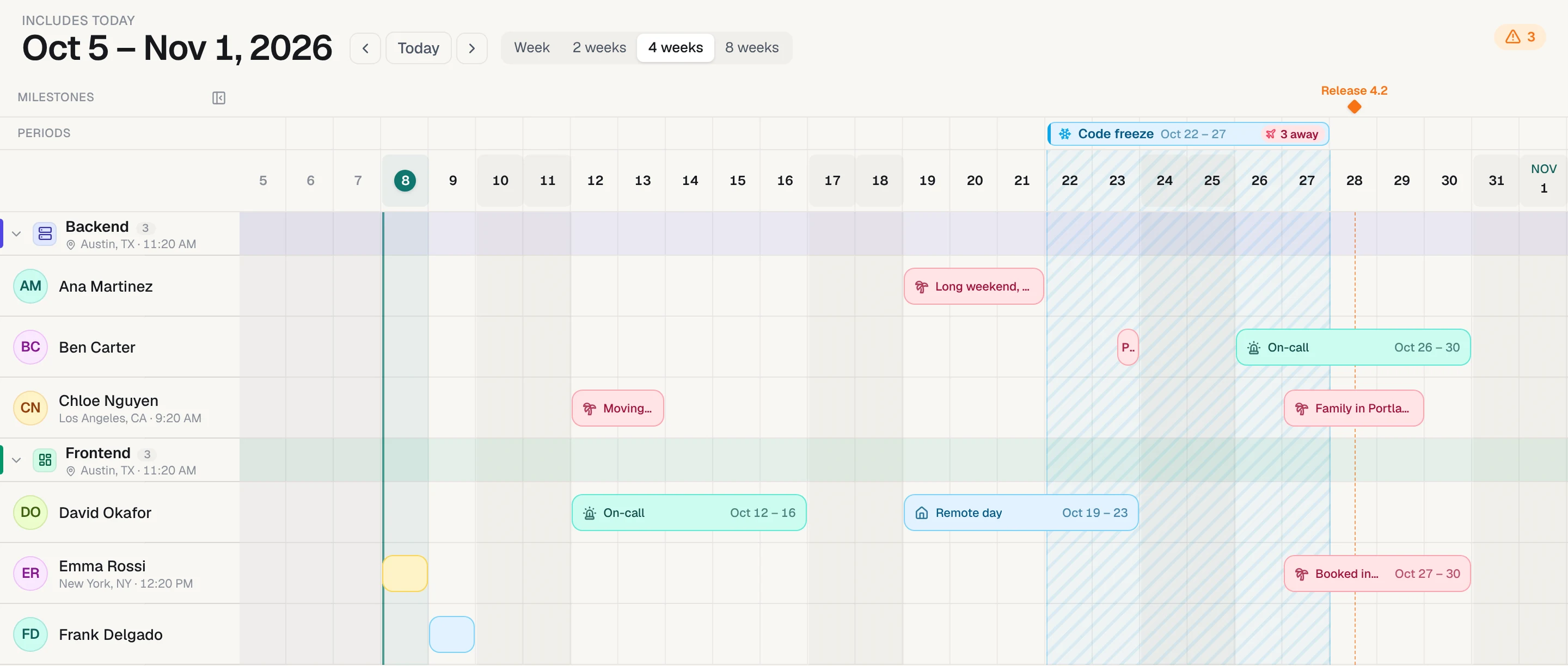
Keep Outlook. Add a timeline for the team.
Paste your team's names into Forgot and you get one row per person, public holidays for each person's country, a milestone for every release date, and a warning when someone is away on it. Your team never has to sign up; they open a read-only link.
- One row per person, 4 to 12 weeks wide
- Public holidays for each teammate's own country
- A warning when someone's away on a release date
- A read-only link for the team. Nobody has to sign up.
No card needed. After the trial it's a one-time payment, not a subscription.
Questions
How do I add holidays to Outlook for the whole team at once?
You can't push the Holidays calendar to other people. Each person adds it themselves (Add calendar, Holidays, United States), or you add the holidays as all-day events on the shared team calendar so everyone who has that calendar sees them.
Can I see team PTO in Microsoft Teams?
If the shared calendar is a Microsoft 365 group calendar, add the Channel calendar app to the team's channel and the group's events show up there. A plain shared calendar doesn't appear in Teams; people open it in Outlook.
How do I add PTO to my Outlook calendar?
Create an all-day event on the days you're away, set show as to Out of office, and turn off the reminder. If your team has a shared time-off calendar, put the event there instead of on your personal calendar so your teammates see it.
Can people outside my company see the calendar?
Sharing directly with an outside address gives view-only access at most, and your admin may have turned external sharing off. The reliable way is Publish a calendar in Settings, which gives you a link anyone can subscribe to.
Does Outlook have a vacation tracker built in?
No. Outlook has shared calendars and out-of-office status, which is what this guide uses, but no balances, approvals or per-person view. Add-ins exist for that, or you can put the team on a tool made for it.