Changelog
Updates
What's new in the Forgot team calendar, the Mac app and the Chrome extension. Want something that isn't here yet? Suggest it on the roadmap.
Nov 10, 2026New
Log: a daily work log that writes your weekly report
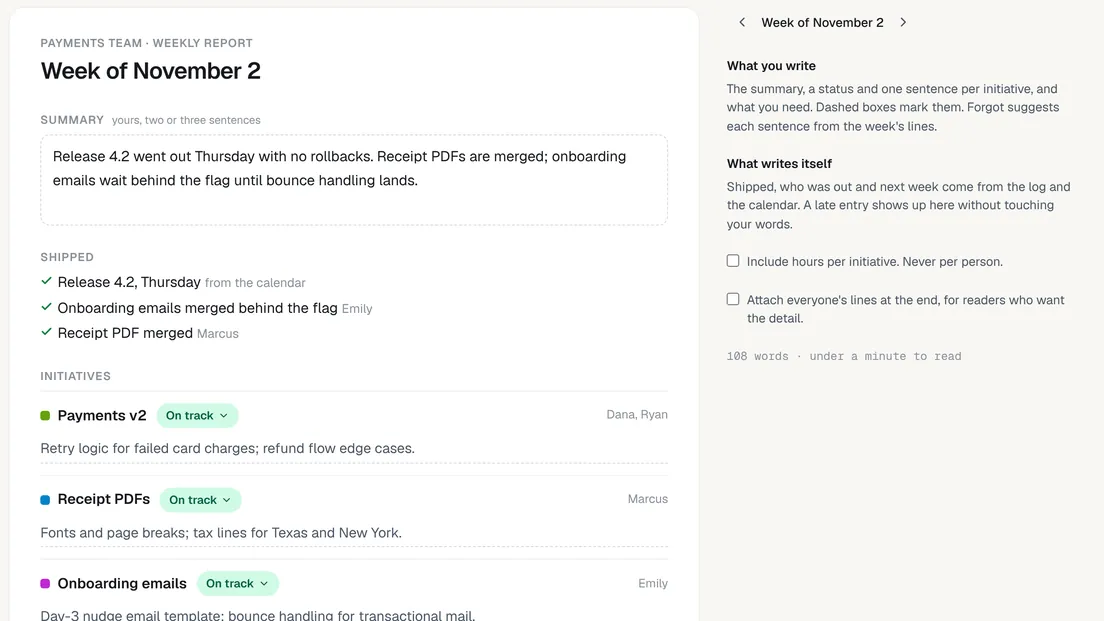
Log is a daily work log for your team, and it writes the weekly report your PM or boss asks for. Open it from your account menu under Log and weekly report.
One line, a few seconds. Type what you did, such as code reviews 2h #pay, and press Enter. The time and the #tag are optional; naming the project files the line too.
The report writes the boring parts. What shipped, who was out and what is coming next week come from the log and your calendar. You write the summary, a status and one sentence per project, and Forgot suggests each sentence.
One button sends it. Send it to your PM by email, or copy it as Markdown or for Slack. Hours stay out unless you turn them on, and never per person.
Log from anywhere. In the Mac app or Chrome extension, open quick open, type the line and press Enter.
Nov 5, 2026New
Sign in with Microsoft, your first bar in a few clicks, and clearer plans
Four changes that make the first ten minutes on Forgot quicker, and one for the meeting cost calculator.
Sign in with Microsoft. Work and personal Microsoft accounts now work next to Google, for teams on Microsoft 365.
Who's out next? A new board with people but no time off yet shows a small form in the corner: pick someone and the dates, and the bar lands on their row with the type picker open. Dragging across a row still works.
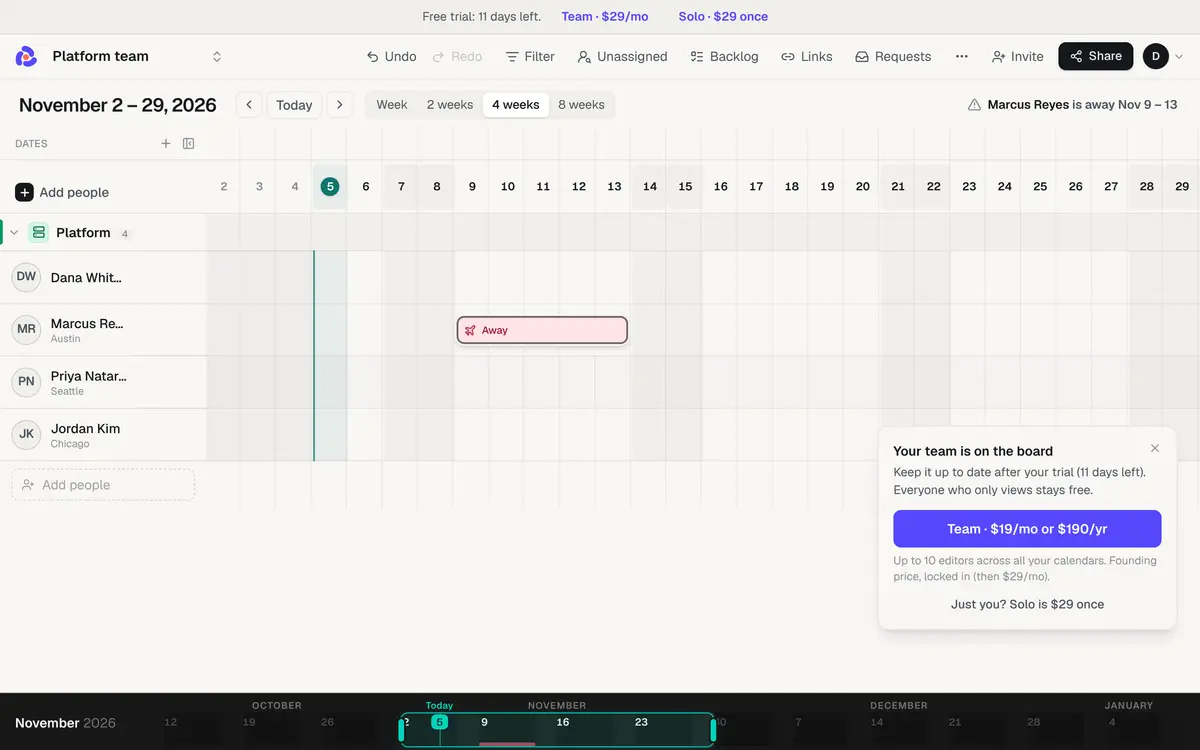
Plans, clearer. Team comes first: one flat price for up to 10 editors, monthly or yearly, with everyone else viewing free. Solo, for when you are the only one editing, is now $29 once. Everyone who bought Solo already keeps it.
Keep this board. Once a board on the trial has three people and some time off, a card shows what it costs to keep it. Close it and it stays closed for that board.
Meeting Cost Pro. For $29 a year the live ticker loses the forgot.dev mark, you can save rooms with your team's roles and salaries, and keep a meeting log with a total and a CSV.
Oct 30, 2026Improved
Rows hold still when you hover; draw a second bar on the ledge
Hovering a row on the board used to open an empty slot under its bars, so the row grew and everything below it jumped. A few of you found that jarring. It no longer moves: rows keep their height while you look around.
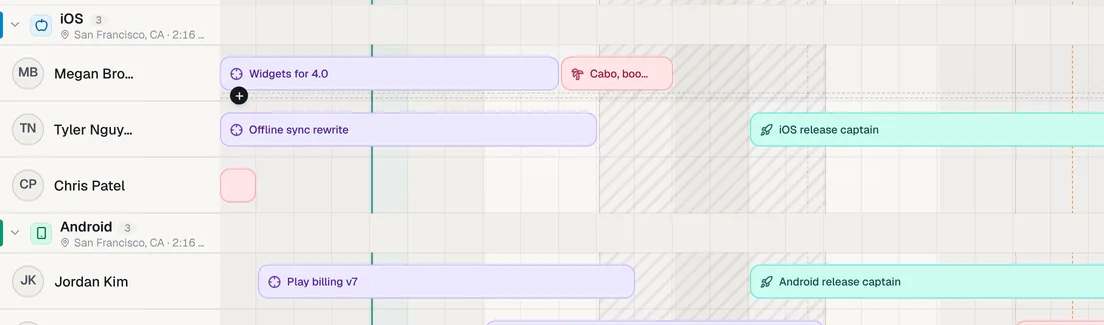
Drawing a second bar. Hover someone with a bar and a thin dashed ledge appears just under it. Drag along the ledge to draw a bar beneath everything they have, over the same days. The row makes room for it the moment you let go, not before.
Everything else is unchanged. Empty days still take a bar with a drag, bars still move and resize the same way, and the glance on the Mac follows along.
Oct 20, 2026New
Invite a second manager to edit your calendar
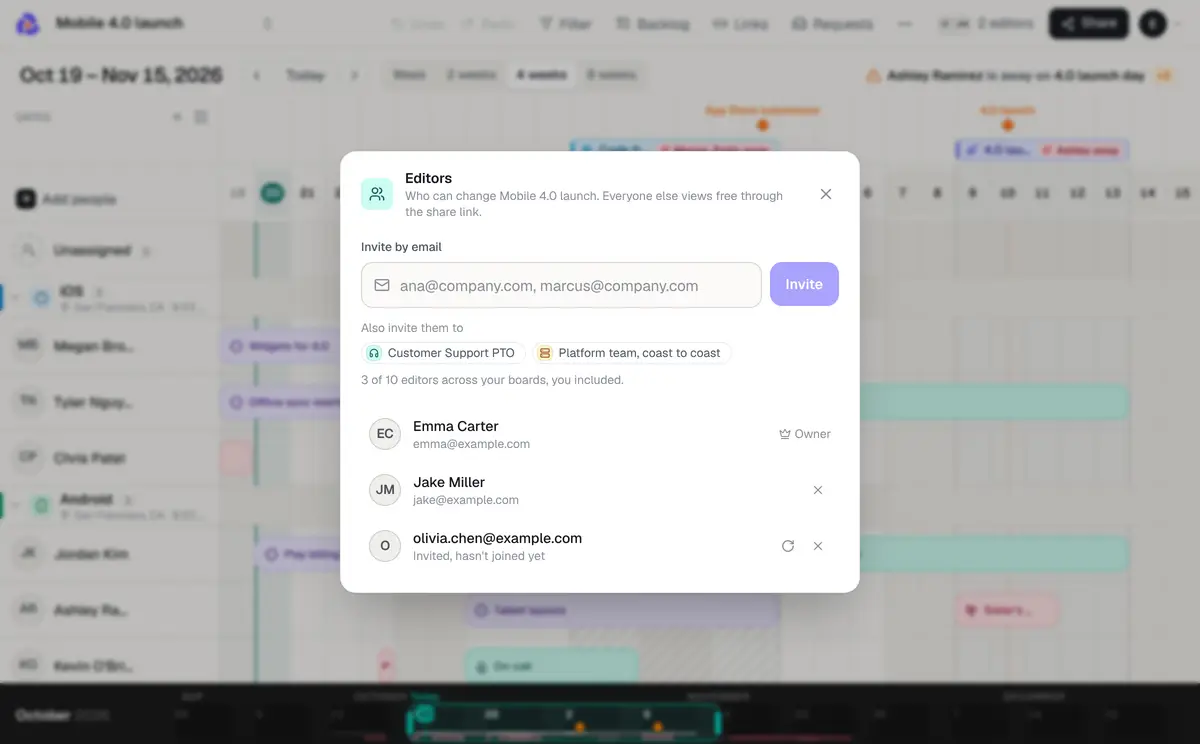
A second manager can now edit the same calendar. Click Invite next to Share, type their email, and pick which of your calendars they can edit. They sign in from the email and see those calendars next to their own, marked “Shared by” you.
Different editors on each calendar. Run several projects? Invite each lead to their own calendar. One plan covers all of them, and someone on two calendars counts once.
Changes show up on their own. When two people edit, each sees the other's changes within half a minute, and only the fields you changed are saved.
Everyone else still views free. Share links, the Slack post, the weekly email and calendar feeds work as before. You only pay for the people who edit.
Editing together is on the new Team plan: $29/month or $290/year for up to 10 editors, and $19/month locked in for the first 20 teams and everyone who bought a lifetime license. Solo stays a one-time payment for one editor. Your 14-day trial includes inviting editors, so you can try it first.
Oct 20, 2026New
Who's out today, now in Microsoft Teams too
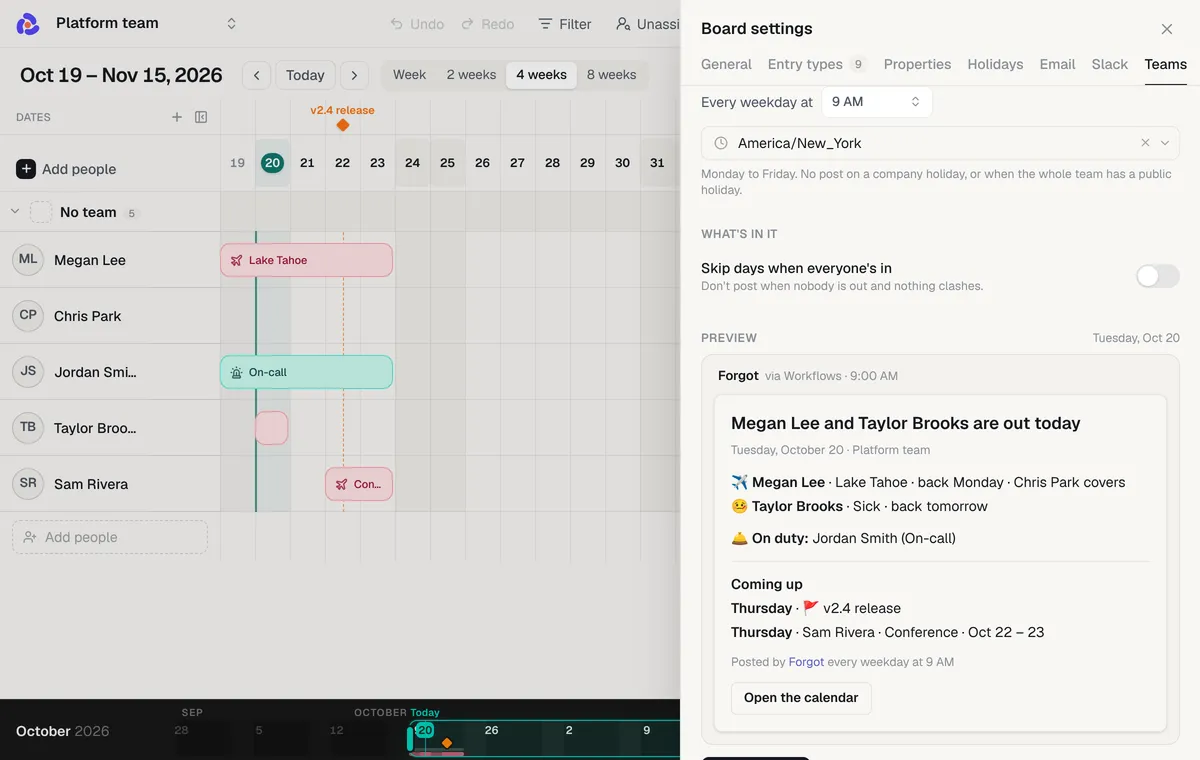
Forgot can now post who's out today to a Microsoft Teams channel, every weekday morning at the hour you pick: the same post Slack teams get. Who's away and when they're back, public holidays, who's on call, and anyone missing a milestone or a code freeze, in the channel the team already reads.
Connect a channel in two minutes. In Teams, open the channel's Workflows, pick Send webhook alerts to a channel, and paste the URL it gives you into board settings, Teams. No app to install and no admin approval.
Same schedule, same rules. Pick the hour and time zone, narrow it to a saved view, and skip days when everyone's in. No post on weekends or company holidays.
Private stays private. Private bars just say Private, like on a share link.
Oct 19, 2026New
Forgot for Chrome is in the Web Store
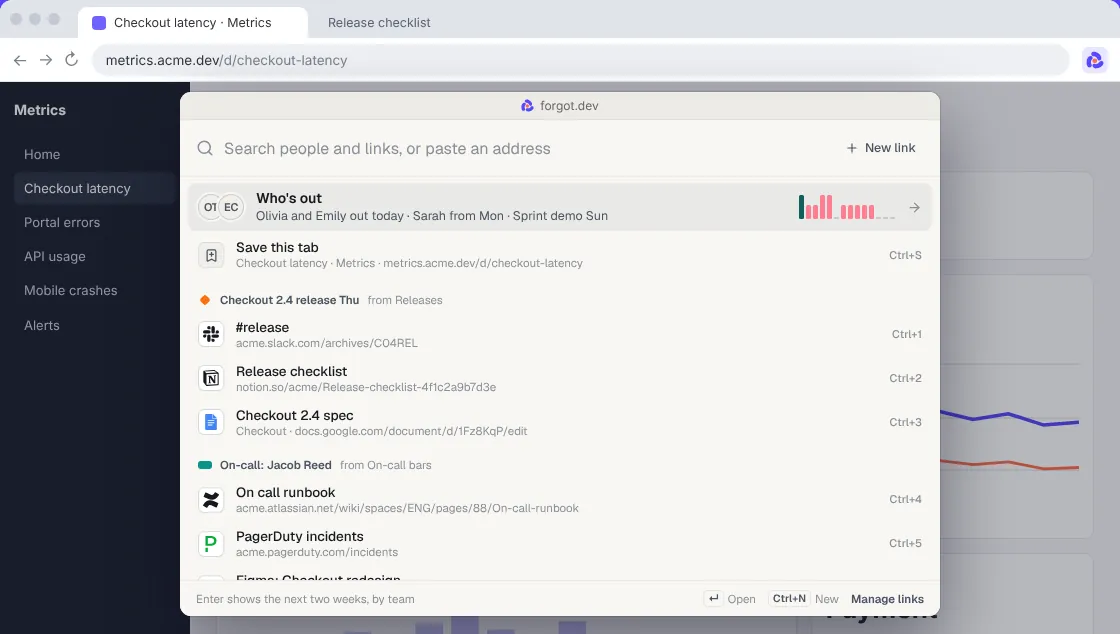
Forgot is in the Chrome Web Store. Add it to Chrome, Edge, Brave or Arc and quick open sits one shortcut away on any tab.
Ctrl+Shift+L on any page. Control-Command-L on a Mac. Who's out, the links for what's on the calendar now, and a search over people and links.
Save this tab. The page you're on is the second row. Press Enter, pick a board or team, done.
fg in the address bar. Type fg, a space and a few letters to jump to any saved link.
Oct 17, 2026New
Links by board, and your pick of boards in Who's out
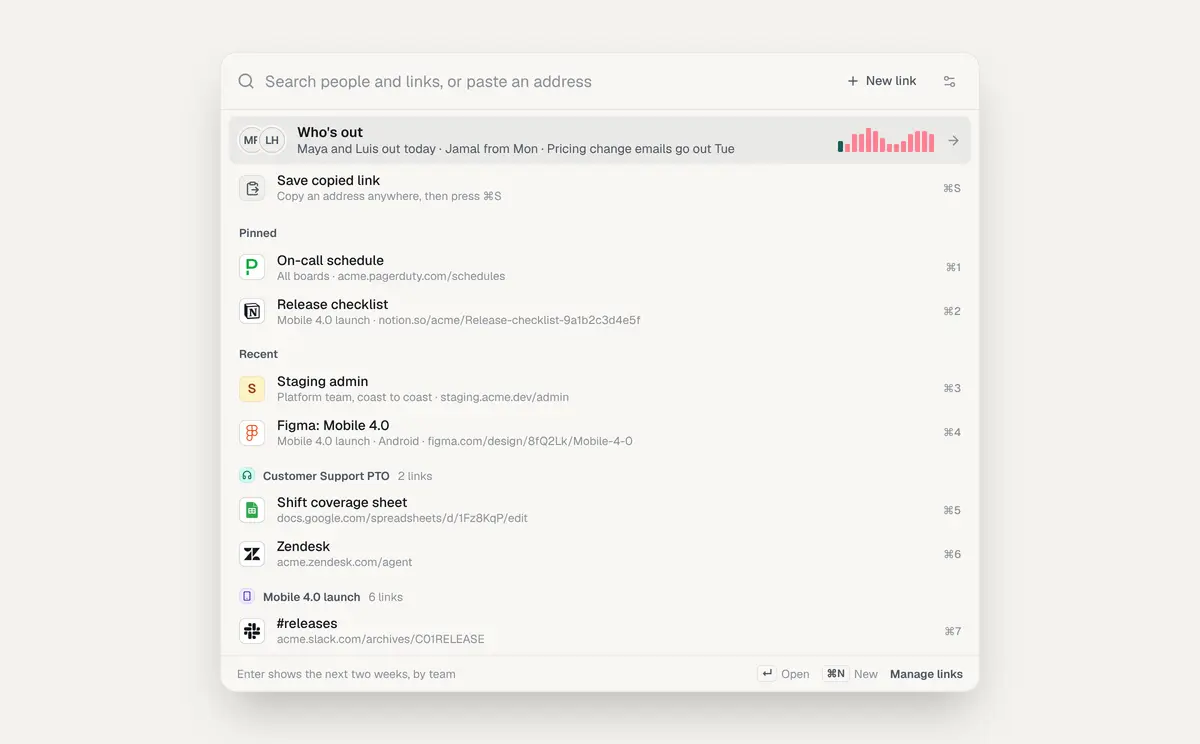
Links now belong to boards. Every link lives on one board (under one of its teams, if you like) or on all boards, so the picker reads the way you think: the board first, then its teams. Quick open shows them all the moment it opens, board by board, under the links for what's on the calendar now, Pinned and Recent. And a gear in quick open picks which boards “Who's out” counts, for the boards whose time off you don't need in the panel.
A board, a team or all boards. Where a link lives decides where it shows: a board's links show on that board, on its glance and in its rows for now; all-boards links show everywhere. Links you filed under a team before are now on that team's board, so nothing moves.
Browse on open. Quick open lists every board's links under the board's name, the whole board's first and then team by team, with ⌘1 to ⌘9 on the first nine. The glance's Links tab and the Links page group the same way.
Pick the boards in Who's out. The gear at the top of quick open lists your boards with a checkbox each. Unticked boards drop out of the Who's out row, its spark and the two-week timeline; their people and links stay searchable. The same switch sits in each board's settings, under General.
Oct 16, 2026New
Quick open on the Mac: Control-Command-L from any app
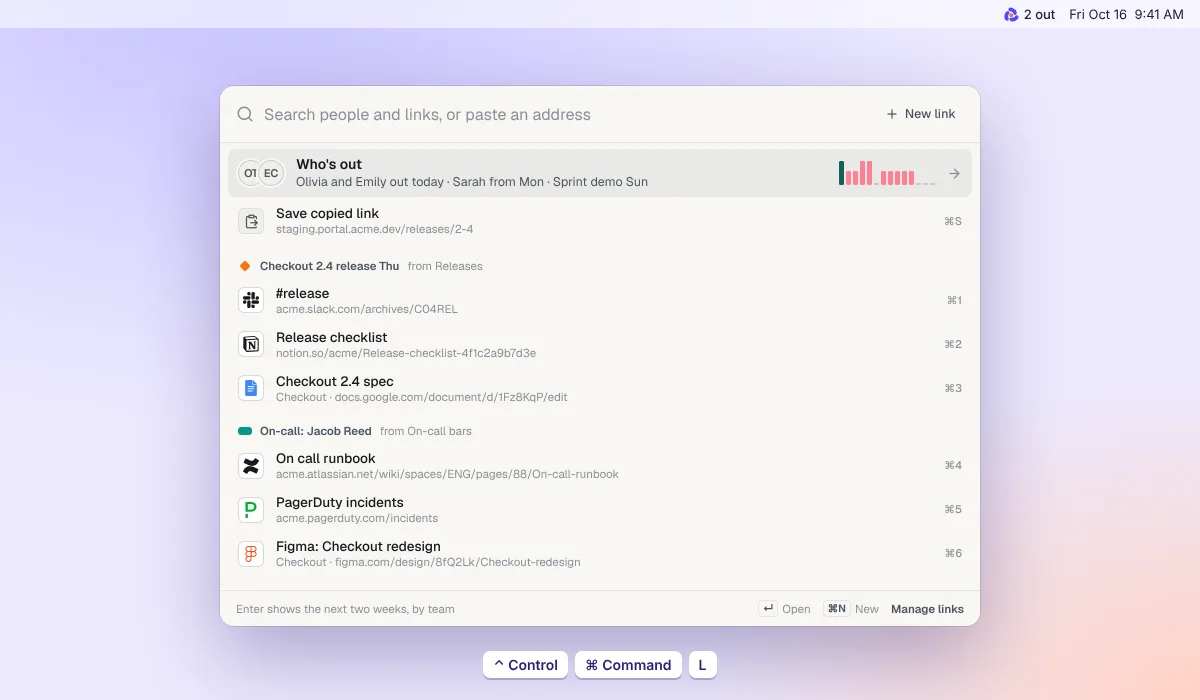
Forgot for Mac 0.4.0 puts quick open one shortcut away. Press Control-Command-L in any app and a panel opens in the middle of the screen: who's out today, the links for what's on the calendar now, and your pinned links. Type a few letters to find a person or a link, and press Enter to open it.
Save copied link. Copy an address anywhere, press Control-Command-L, then Command-S and Enter. The name comes from the address, and you can type over it.
Open a few in a row. Enter opens a link in your browser and puts the panel away. Command-Enter opens it behind the panel, which stays up.
Who's out, two weeks ahead. Enter on the first row shows the next two weeks by team. Enter on a person opens their board in the app.
Get it from forgot.dev/mac, or choose Check for Updates in the Forgot menu.
Oct 16, 2026New
Links: the addresses your team keeps asking for
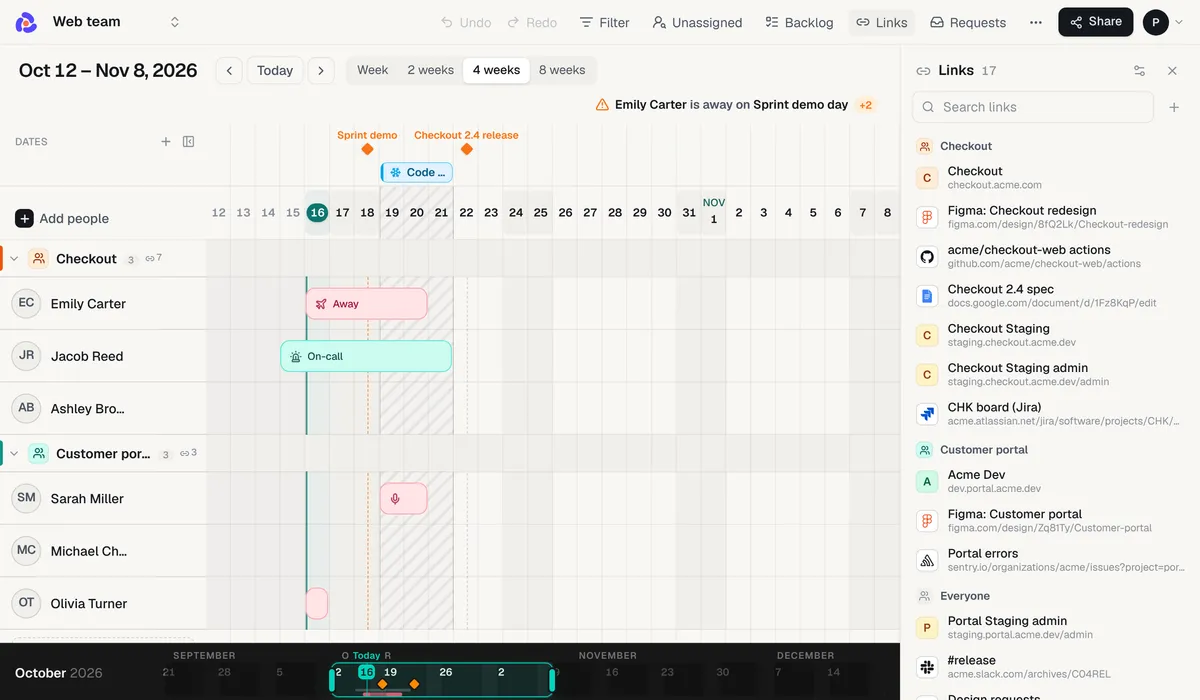
Every team has a few addresses people ask for again and again: the staging site, the Figma file, the on-call runbook, the release channel. Forgot now keeps them next to the calendar. Save a link under one of your board's teams, or under Everyone, and it's one click away on that board.
Links on the calendar. Put a link on every bar of a type, on every release, deadline or demo, or on every code freeze. The on-call runbook then shows on every On-call bar, and the release checklist on every release. A link can also go on just one bar, milestone or period.
On the board. The Links button opens a panel with the board's links by team. Each team's name shows how many links it has; click the count to see them.
One place to manage them. Links lists everything you've saved, by team. Paste one address or a whole list, and each gets a name from its address.
In the Mac app. The menu bar glance has a Links tab: the links for what's on the calendar today, your pinned links, and each team's.
Quick open. Quick open puts who's out and the links for right now in one keyboard list. Type to find a person or a link, and press Enter to open it.
Links stay yours. They never show on share links, embeds, the calendar feed, Slack or email.
Oct 16, 2026New
Milestones know who they need
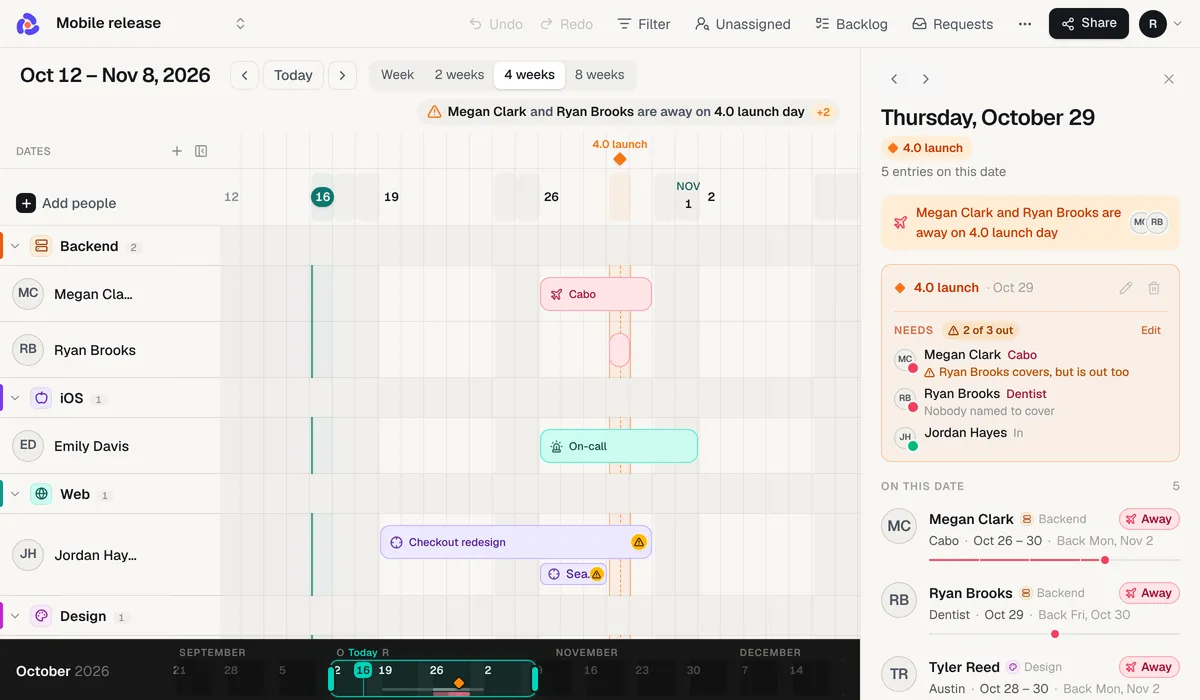
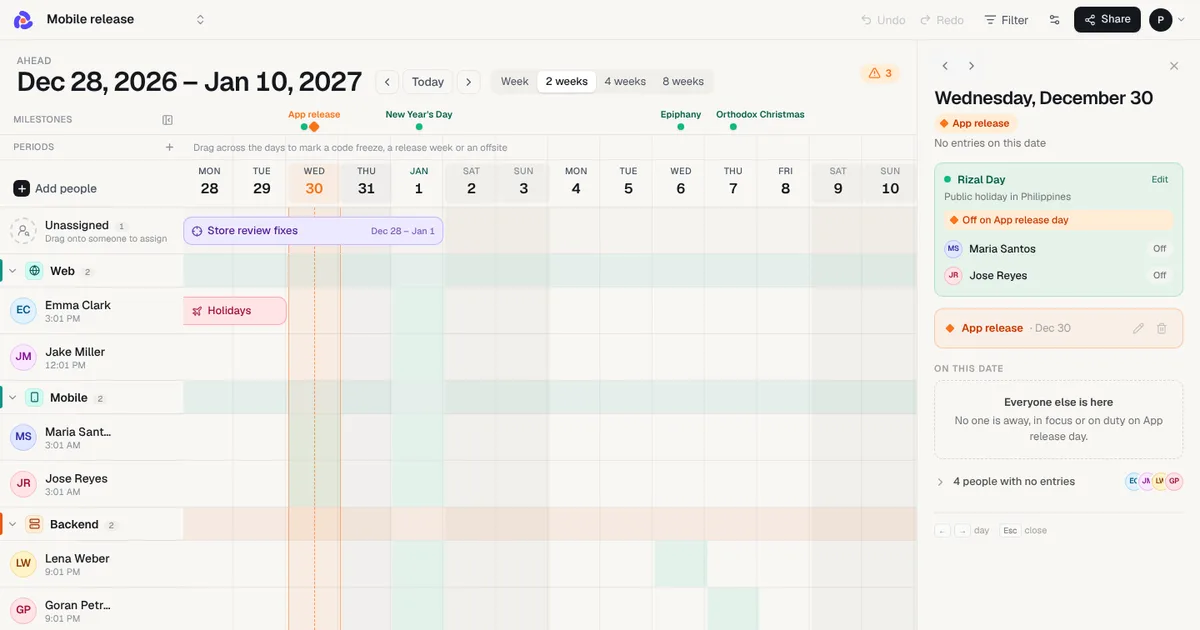
A release date can now name the people it can't ship without. Open a milestone's day and pick Who's needed? From then on, only their time off counts against that date, so a designer's vacation no longer makes every release look at risk.
Where everyone it needs is that day. The milestone card lists each person as in, away, maybe away or off for a public holiday, with who covers for anyone who is out, and a warning when the cover is out too.
Double-booked warnings. Two focus bars or two on-call bars on the same person at the same time now get a warning on the bar and in the line under the dates. Focus during on-call is normal, so it doesn't count.
What changed, in the weekly email. The Monday email now lists time off and dates that were added or updated since the last one, so you can catch up without scanning the whole board.
Oct 16, 2026New
See who covers while someone is away
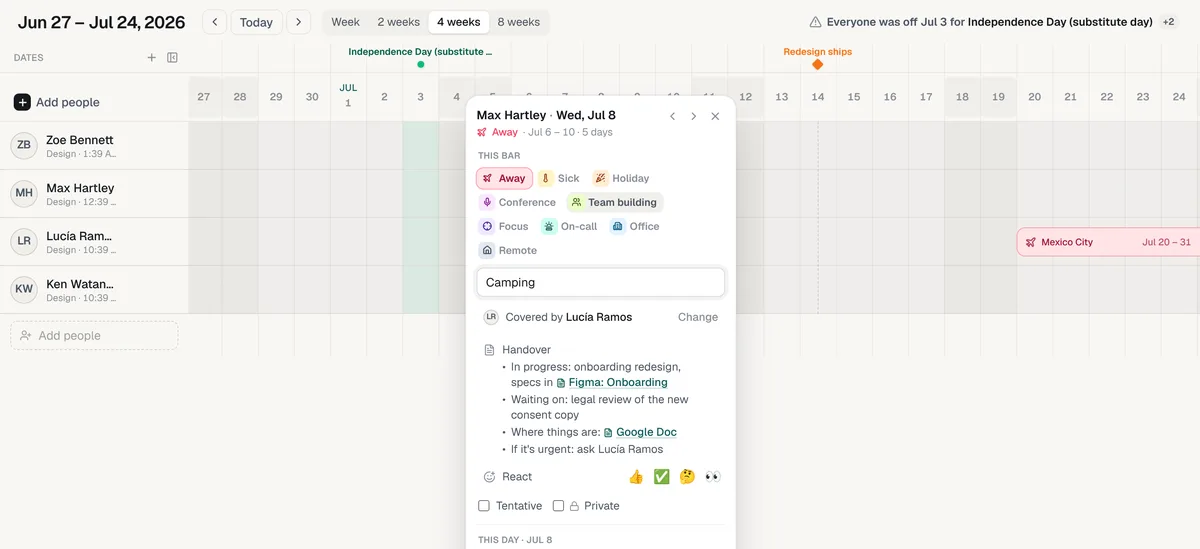
Every bar of time away can now say who covers while that person is out, so nobody has to ask around. Click a vacation, pick a teammate under Who covers?, and Forgot shows how free each person is across those days.
Everywhere your team looks. The share link, the daily Slack post, the weekly email, the calendar feed and the Mac app all say who covers.
A warning when the backup is out too. If the person covering has time off or a public holiday during those days, the bar says so, and so does that morning's Slack post.
Add handover. Next to Add note, it starts a short handover: what is in progress, what is waiting, where things are and who to ask. Prompts you leave blank are dropped.
Oct 10, 2026New
Import your spreadsheet, time off and all
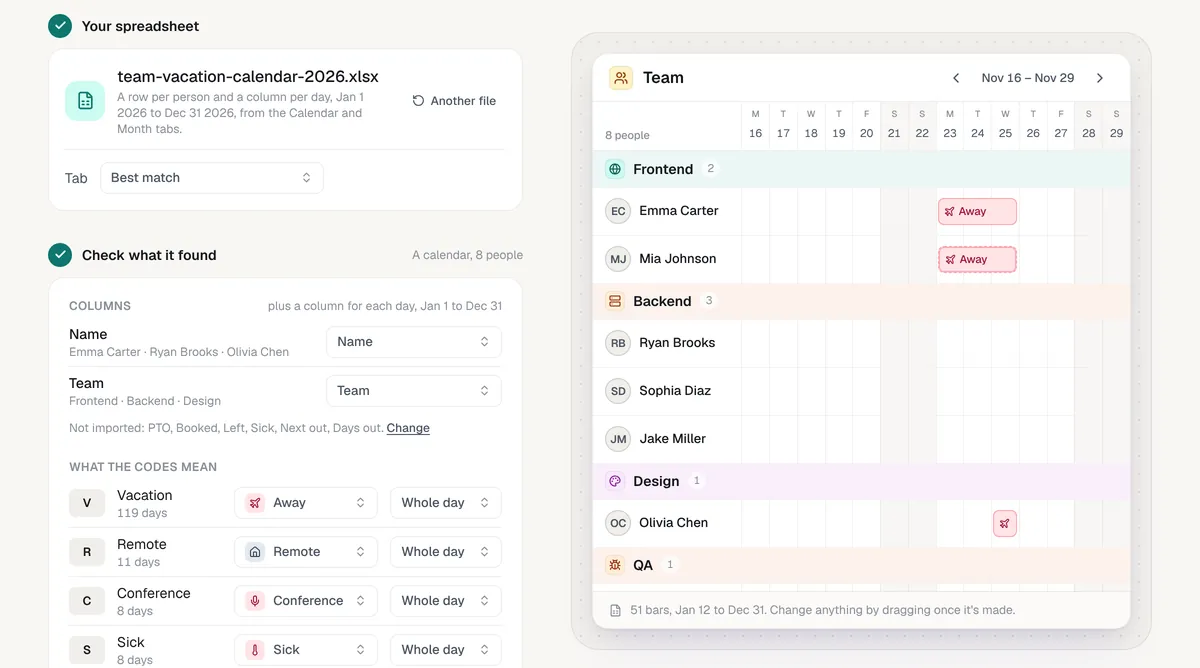
If your team's time off lives in a spreadsheet, you can now bring it along. Drop in the Excel or CSV file, or paste the rows from Google Sheets, and Forgot makes a board from it: everyone on the sheet gets a row and every day off becomes a bar you can drag.
Calendars and lists. A sheet with a row per person and a column per day works, month tabs and all, and so does a list with a row for each stretch of time off, like an export from an HR tool. Declined requests stay out.
Your codes, understood. V, PTO, WFH, S or ½ become Away, Remote, Sick or a half day, using the sheet's own legend when it has one. Change any of them before the board is made.
See it before it's made. The board is drawn next to what Forgot found, so you can fix a column, leave someone out or rename it before anything is saved.
Our template comes along as it is. The free vacation calendar template imports with its half days, tentative plans and labels like Personal.
Find it under Import on your boards page, or below the form when you make a new board.
Oct 10, 2026New
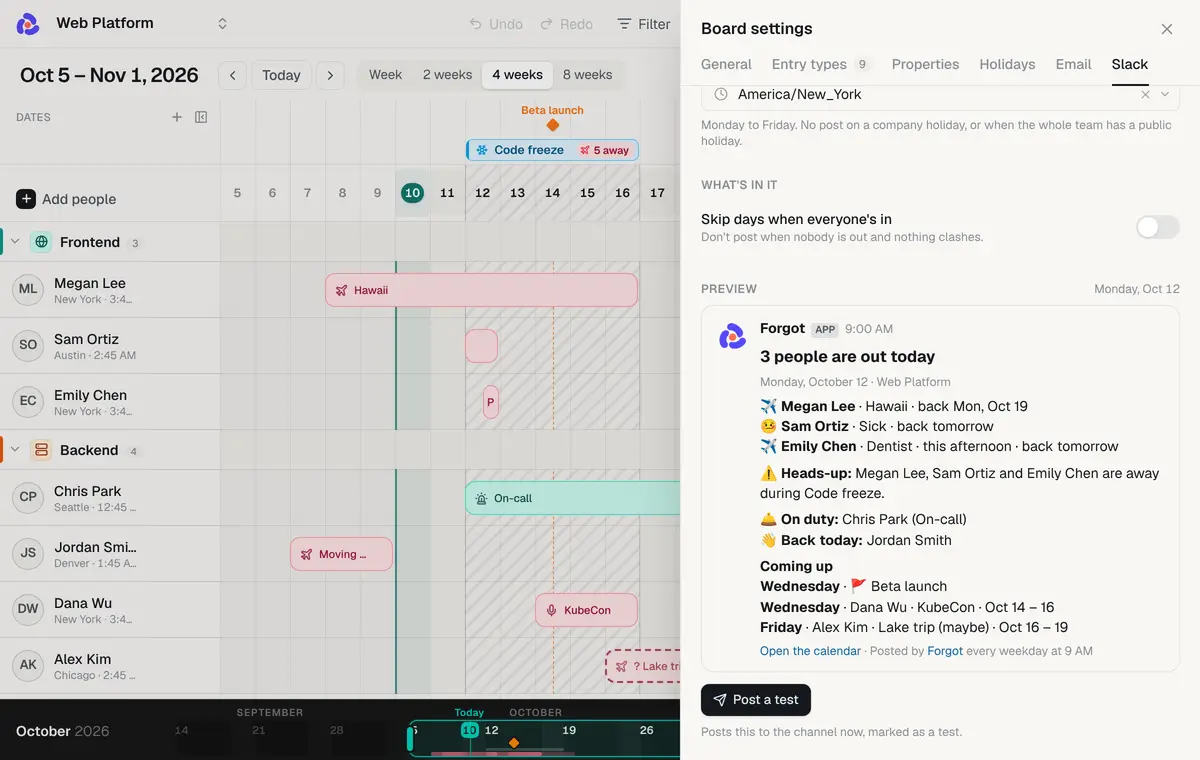
Who's out today, posted to Slack every morning
Forgot can now post who's out today to a Slack channel, every weekday morning at the hour you pick: who's away and when they're back, public holidays, who's on call, and anyone missing a milestone or a code freeze. The team sees it where they already talk, without opening the calendar.
Connect a channel. In board settings, Slack, connect the channel you want, then pick the hour and time zone. It's also one click away in the Share menu.
Clashes come first. When someone is away on a milestone or during a code freeze, a heads-up line says so. Coming up lists who leaves in the next few days.
Quiet when there's nothing to say. No post on weekends or company holidays. Turn on Skip days when everyone's in and the channel only hears from Forgot when someone is out.
Private stays private. Private bars just say Private, like on a share link. Pick a saved view to post only one team.
See it first. Settings show a preview of the next post, and Post a test sends it to the channel now.
Oct 10, 2026New
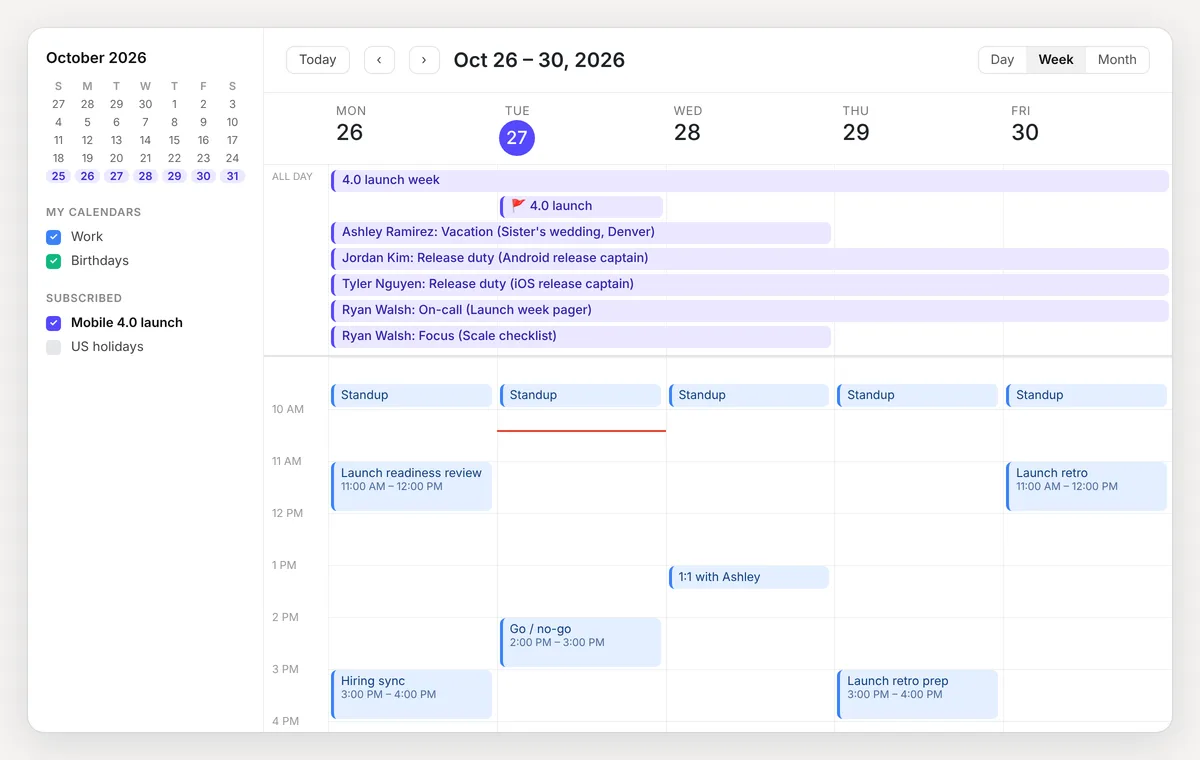
Subscribe to your board in Google Calendar or Outlook
Your Forgot calendar can now sit inside the calendar you already live in. Subscribe once in Google Calendar, Outlook or Apple Calendar, and who's out shows up as all-day events right above your meetings. It keeps itself up to date as you change the board.
One click to subscribe. Open Share on any board and pick Google, Outlook or Apple. For any other app, copy the link and add it as a calendar from a URL.
Your whole team can add it. Anyone with the view-only link sees Add to calendar at the top of the board. No account needed.
What matters for planning. Every bar with the person's name, with half days and tentative plans marked. Milestones say who's out that day, and code freezes and public holidays say who's away.
Just one team. Open a saved view before you subscribe, and the calendar covers only the people in it.
Never in the way. The events count as free time, so a teammate's vacation never makes you look busy. Private bars stay private, and turning the share link off stops the feed.
Calendar apps fetch it on their own schedule: Apple Calendar and Outlook within a few hours, Google Calendar can take up to a day.
Oct 10, 2026New
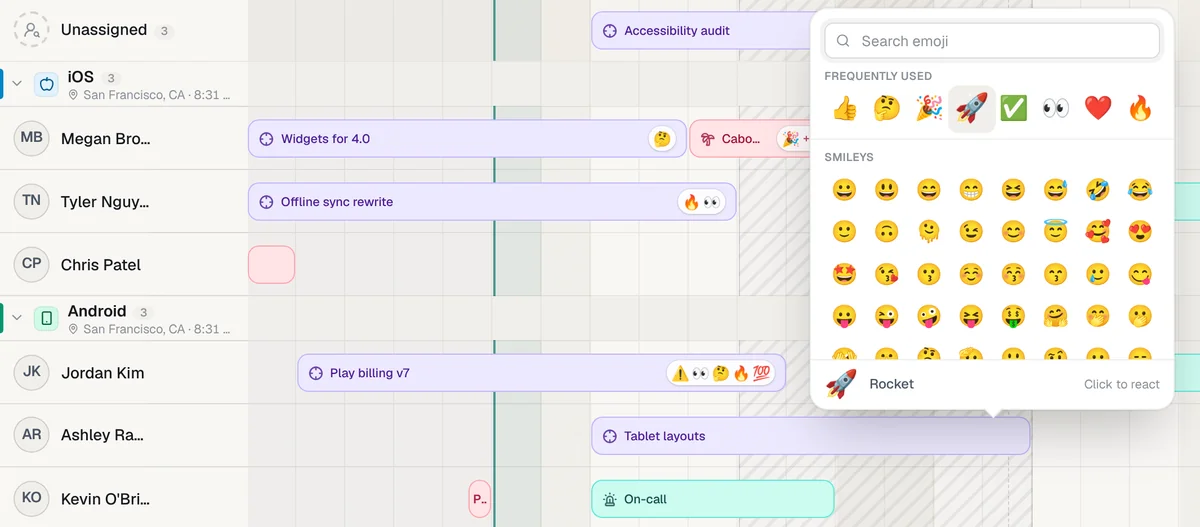
React to a bar with an emoji
You can now react to any bar with an emoji, like a Slack message. A 👍 on a vacation that's approved, a 🤔 on a plan you're not sure about, a ⚠️ on the on-call week that lands on release day. Reactions sit at the end of the bar, so you see them without opening anything.
Add one. Hover a bar and click the smiley, or click the bar and pick from React. Your most used emoji come first and search finds the rest. With a bar selected, press : to open the picker.
Take one off. Click it in the bar's menu or in the picker. Undo works too.
Everywhere the board goes. Share links, embeds, the Mac app and image exports show reactions. Private bars hide them, like their label and note.
Oct 10, 2026New
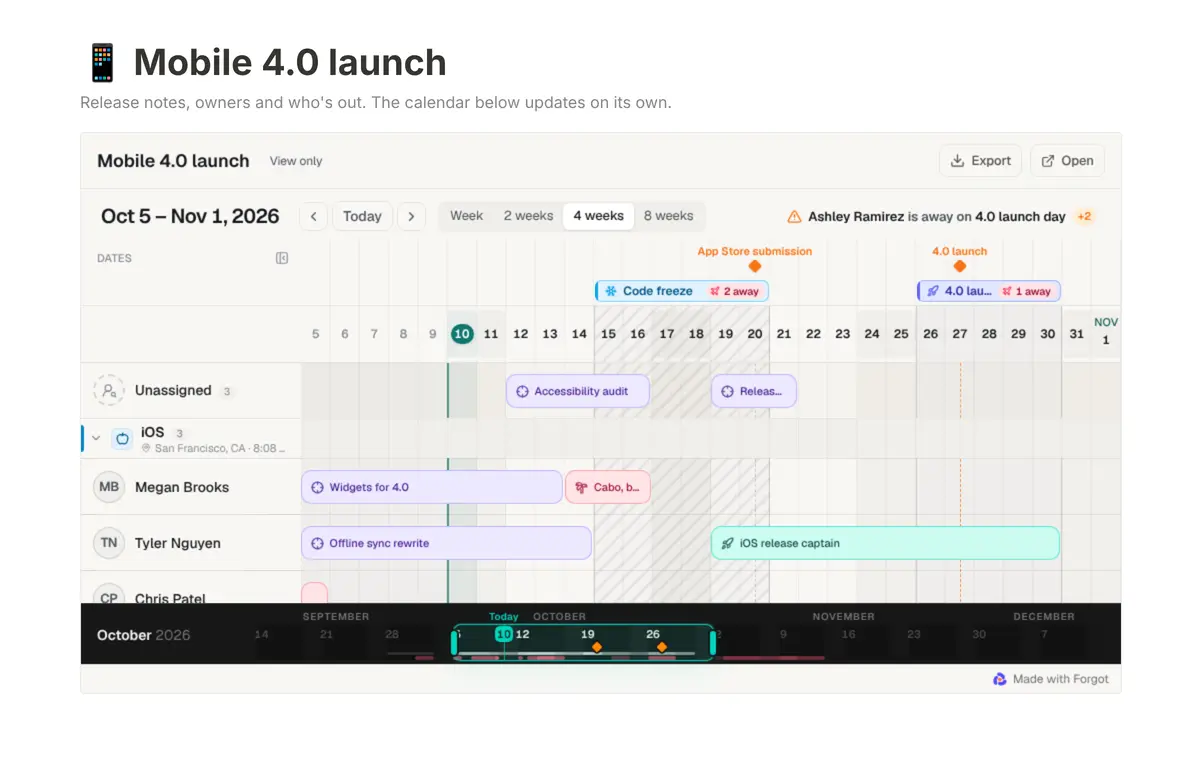
Embed your calendar in Notion or Confluence
You can now put your Forgot calendar inside your team wiki. Open Share on any board, copy the new embed link, and paste it into a Notion or Confluence page. The page shows the live calendar, read-only, and it updates whenever you change the board.
Notion: type /embed and paste the link. Confluence: add the iFrame macro and paste it.
Same rules as your share link. Private bars show only as Private, and turning the link off or making a new one turns the embed off too.
Dark wikis. Tick Dark in the share menu for a wiki in dark mode. Saved views work too: share from a view and the embed opens on it.
Oct 9, 2026New
Try it without signing up
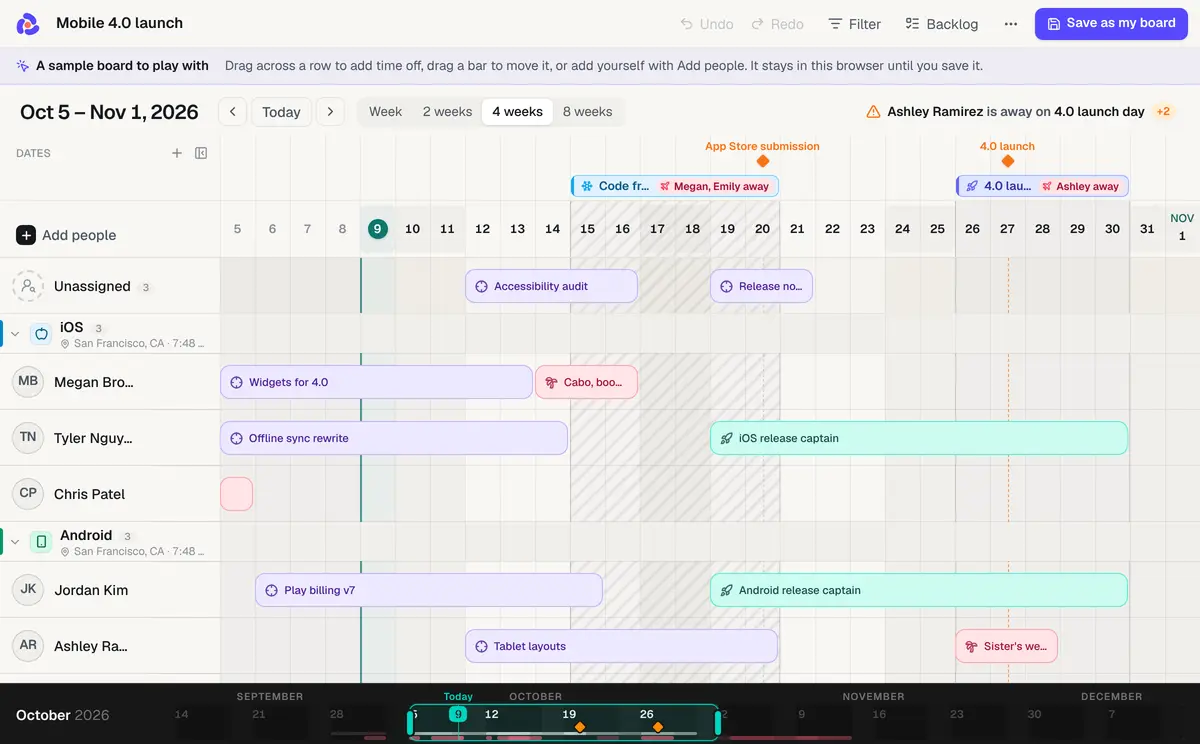
You can now try Forgot before you sign up. Open the live demo and you get a real team calendar, Mobile 4.0 launch, in the full editor: drag across a row to add time off, drag a bar to move it, add yourself with Add people, and watch the release warnings change. Nothing to sign up for, and your changes stay in your browser.
Keep what you made. Save as my board starts your free trial and turns the demo, with your changes, into your own calendar.
Every example works. The home page and each example calendar have a Play with it link, so you can try the release calendar, the remote team or the support rota the same way.
Oct 9, 2026New
Start from an example calendar
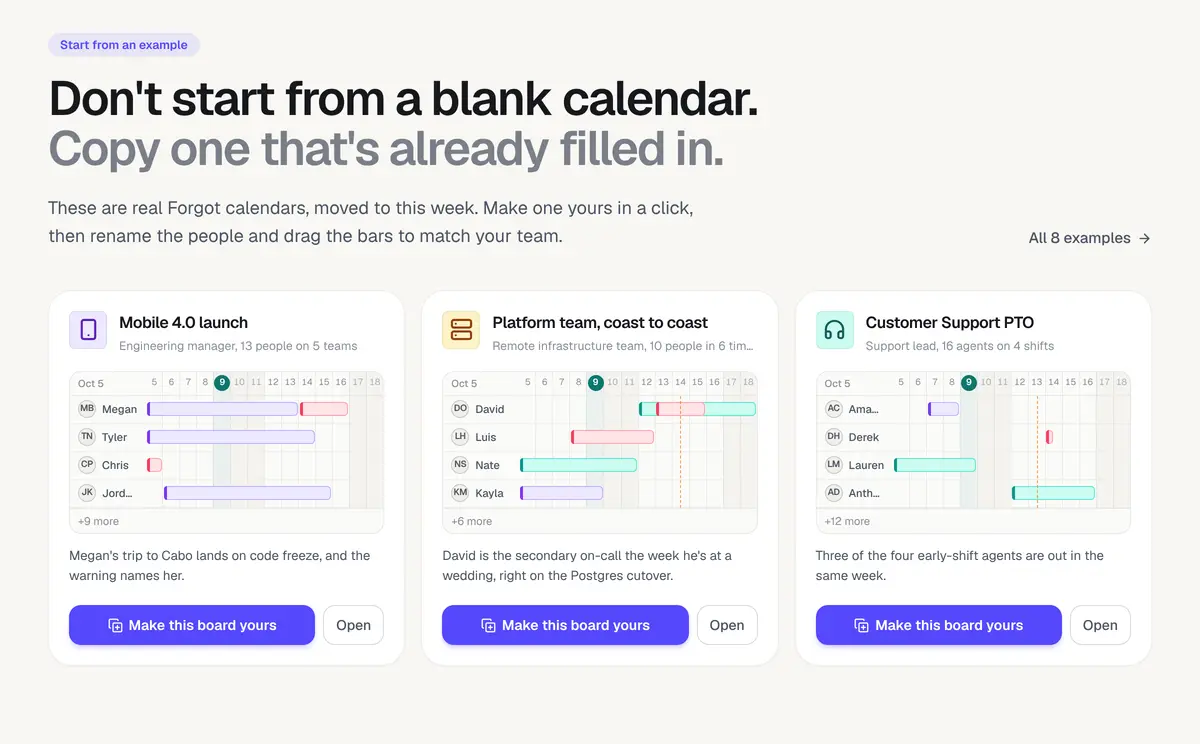
You don't have to start from an empty calendar any more. Every example calendar has a Make this board yours button: one click gives you your own editable copy, moved to this week, with the people, teams, vacations, on-call weeks and release dates already in. Rename the people, drag the bars, delete what you don't need.
Start from an example. Pick the release calendar, the remote team across six time zones, the support rota or any of the other examples at /examples.
Sign in with Google or GitHub. The free trial starts with one click, no password and no card. Sign-in links by email are gone, since they didn't always arrive.
Oct 9, 2026Design
A clearer board: color says what a bar means
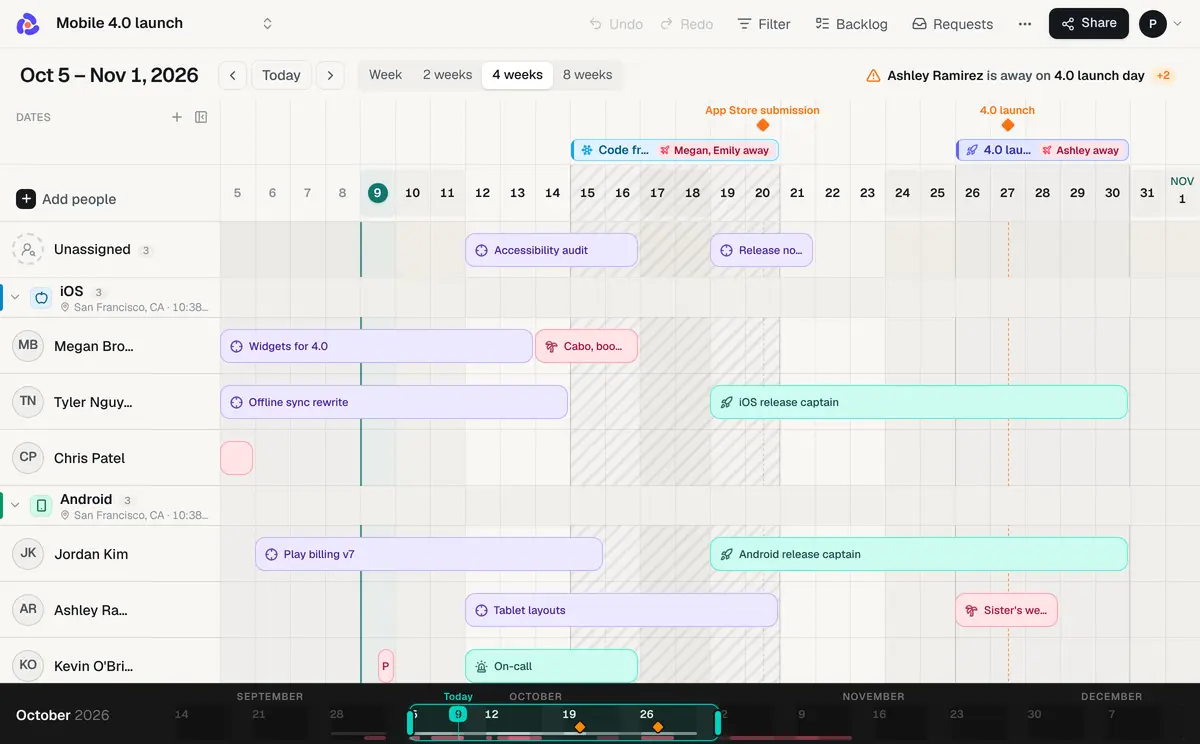
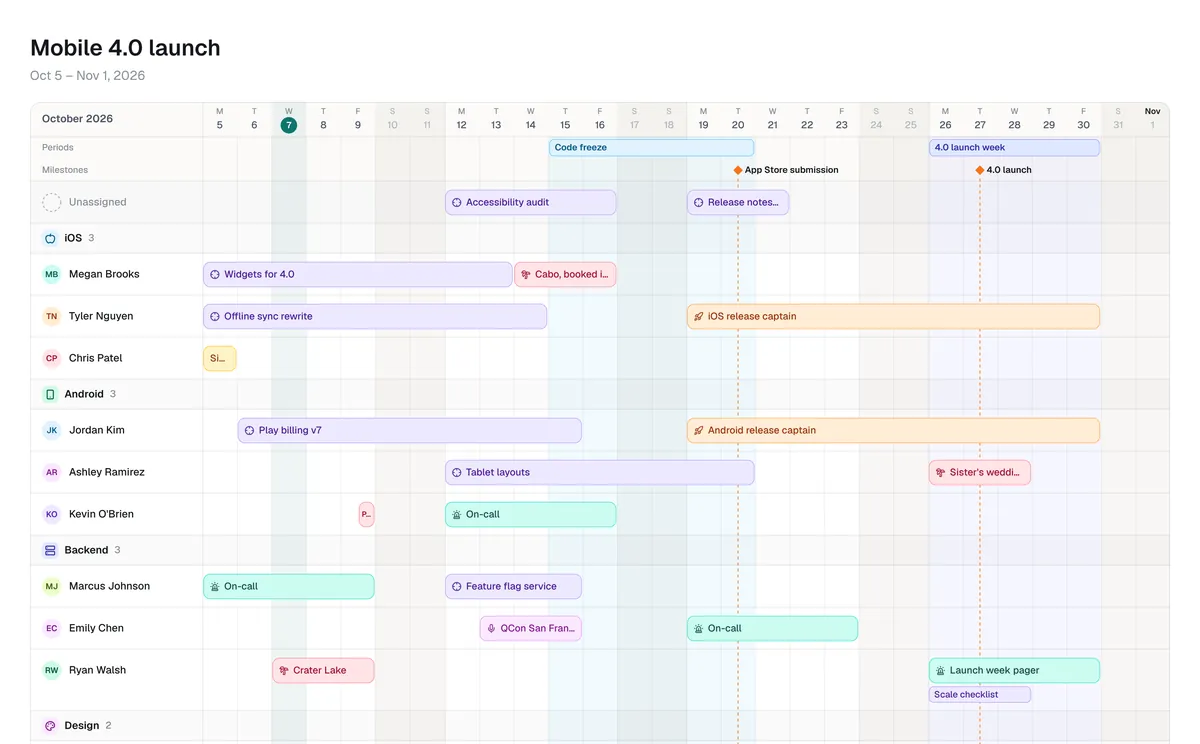
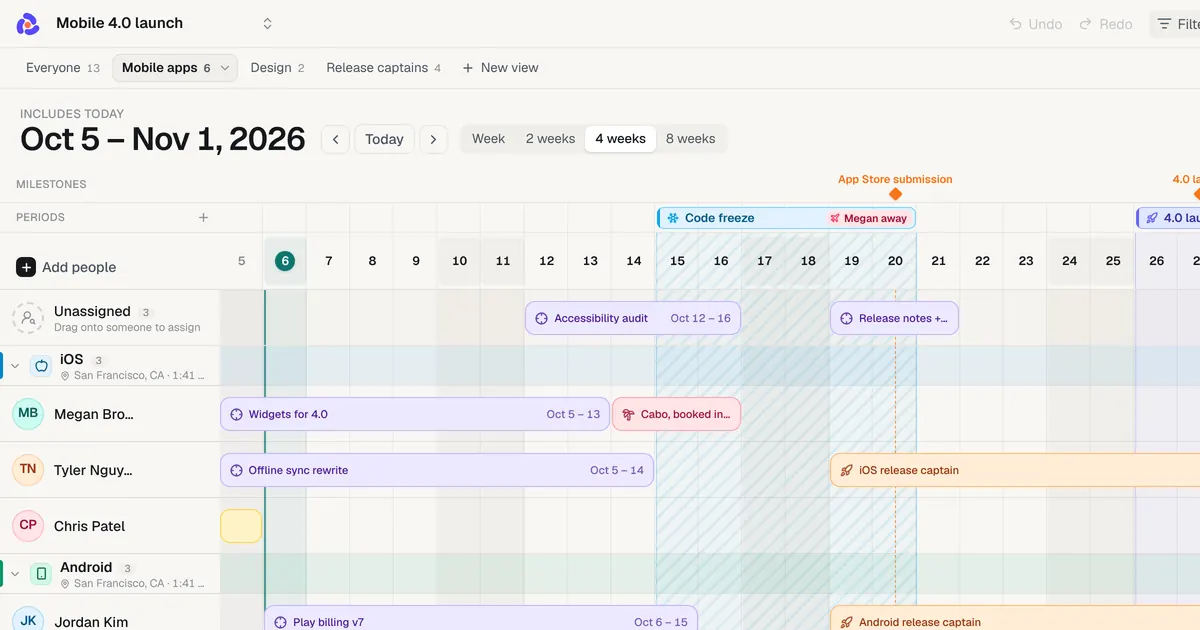
Color on the board now means one thing. Every bar takes its color from what its type counts as: time off is coral, focus work is violet, on-duty work is teal, and plain working days are an outline. A type’s own color lives on its icon, so Vacation and Sick both read as “out” at a glance and the icon tells them apart.
One lane for dates. Milestones and periods such as a code freeze share a single lane above the days, and only take a second row when they overlap. The + beside it adds either.
Quieter rows. Team colors stay on the group header, rows are neutral, and avatars no longer compete with the bars, so more people fit on a laptop screen.
The risk sentence, in the header. “Ashley is away on 4.0 launch day” now sits beside the date controls with a count for the rest, instead of hiding behind a badge.
A shorter month strip. The scrubber at the bottom is half the height: months, milestone diamonds and a coral trace of how many people are away.
Smaller things. Bars show their dates only when one end is cut off by the window. The type picker groups Out and At work. The bar popover is sorted into This bar and This day. Export and settings live under the ⋯ menu, so Share stays the one button. On the Mac, the glance leads with the next milestone someone will miss.
Oct 7, 2026New
Private bars on share links
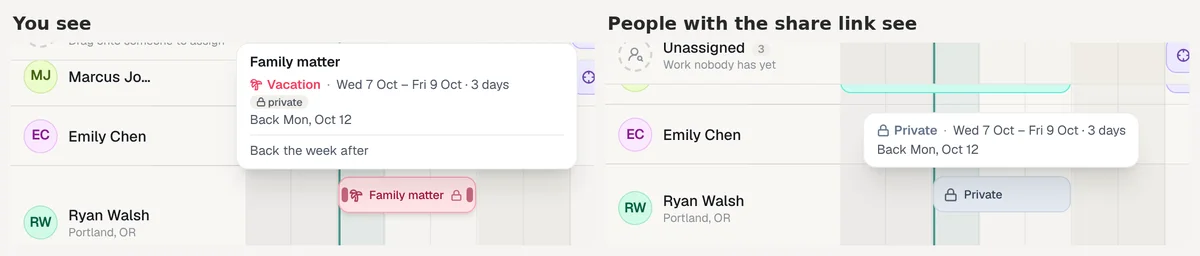
Some time off is nobody else's business. You can now mark a bar private, or lock a whole type like Sick, and people who see the board without owning it only see that the person is out.
One bar. Open a bar and tick Private.
A whole type. In board settings, Entry types, click the lock next to a type. Every bar of that type is private, past and future.
What viewers see. Share links, "Copy to my Forgot" and teammates' weekly email show a grey Private bar with no type, label or note. Who's out and the release-day warnings still count it, so the plan stays honest.
You still see everything on your own board, in the Mac app and in your own copy of the weekly email.
Oct 7, 2026New
Export a board as an image or PDF
You can now download a board as a PNG image or a one-page PDF, ready to drop into a planning doc, a slide or a Slack thread.
What you see is what you get. Click Export in the top bar. The file shows the weeks on screen and the open view, with milestones, periods, public holidays and a legend of the bar types.
Always light. The picture uses the light theme even if you work in dark mode, so it reads well in a document.
Private stays private. Private bars show as Private by default. Tick a box if you want their details in the file.
On share links too. Anyone with a view-only link can download the same picture.
Oct 7, 2026New
A backlog for work that has no dates yet
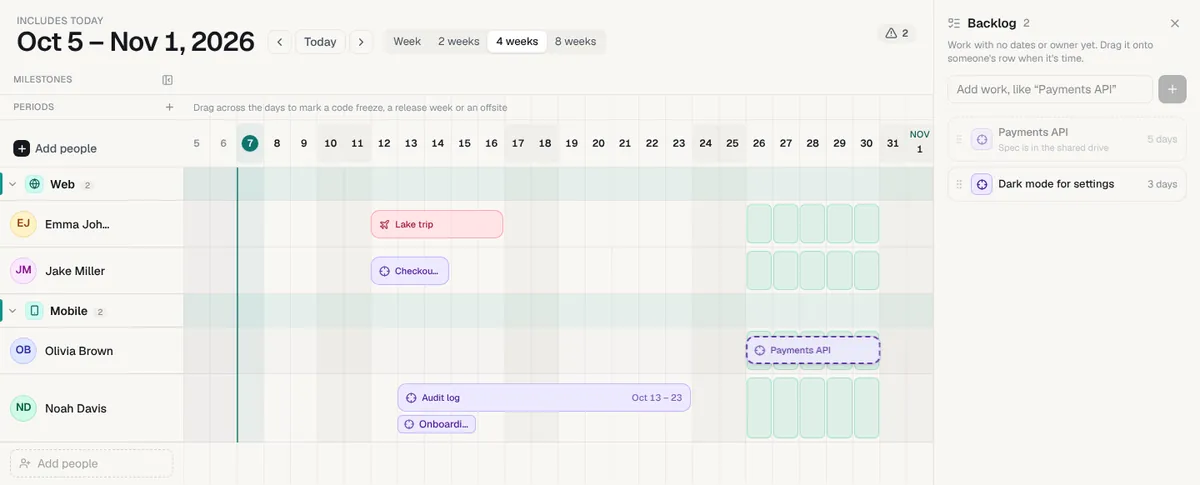
Some work has no dates yet. Until now it lived in a separate list, or you drew a guessed bar and hoped nobody took it seriously. Boards now have a Backlog: open it from the toolbar and type what is waiting, like “Payments API”.
Drag it onto someone when it is time. Drop an item on a person's row and it becomes a bar for its working days, skipping weekends and their public holidays. While you drag, every row shows who is free on those days.
Keep it in order. Drag items up and down the list, and give each one a type, a length in days and a note.
Plans change. “Move to backlog” on any bar takes it off the board and back into the list, with its length kept.
Undo works. Placing, moving back and reordering are each one Cmd+Z.
The backlog is yours: it is not shown on share links.
Oct 7, 2026New
Your team can send you their time off with one link
You no longer have to chase people for their vacation dates. Turn on a request link from Share, post it in your team chat, and everyone sends you their own days off. No accounts, no app to install: they pick their name, drag across the days on a calendar, add a note if they want, and send.
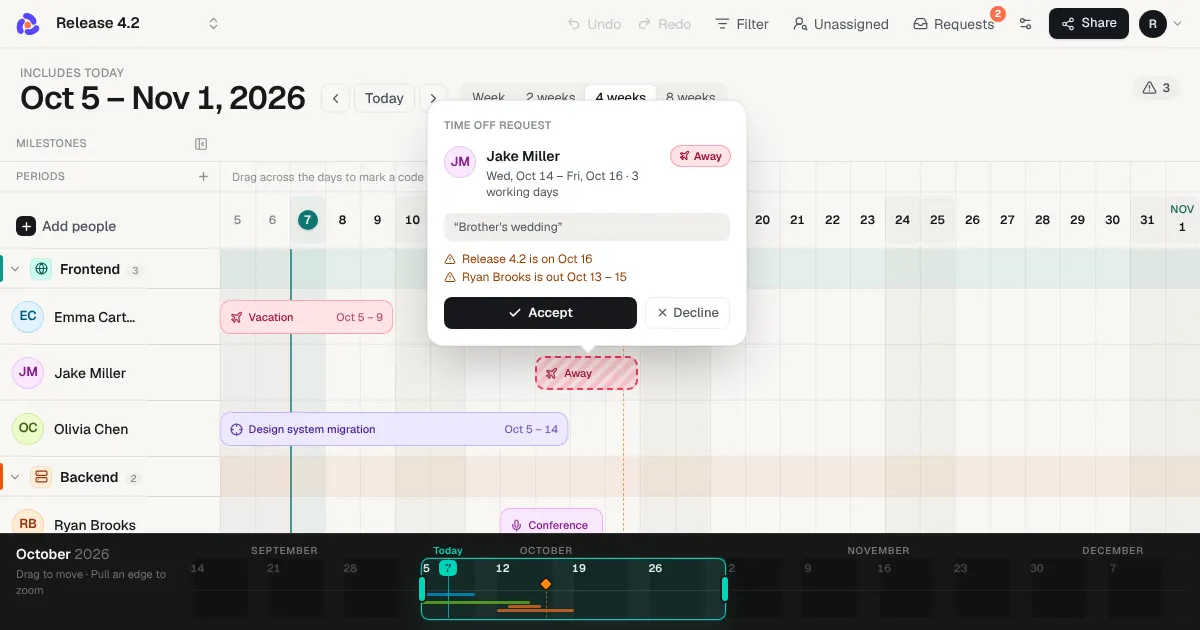
Requests land on your board. Each one shows up as a striped pending bar on that person's row, and the Requests button keeps count. You also get an email for every request.
See the clash before you say yes. Click a pending bar and the review card tells you which milestones, code freezes and teammates' days off it overlaps. Accept turns it into a normal bar, Decline drops it.
New people add themselves. Someone who isn't on the board yet can type their name, and accepting their request adds them.
They see the answer. The page remembers what each person sent and shows whether it was accepted or declined.
There are no balances, accruals or approval chains. It is one link that saves you a round of messages.
Oct 7, 2026New
Forgot for Mac is ready to download
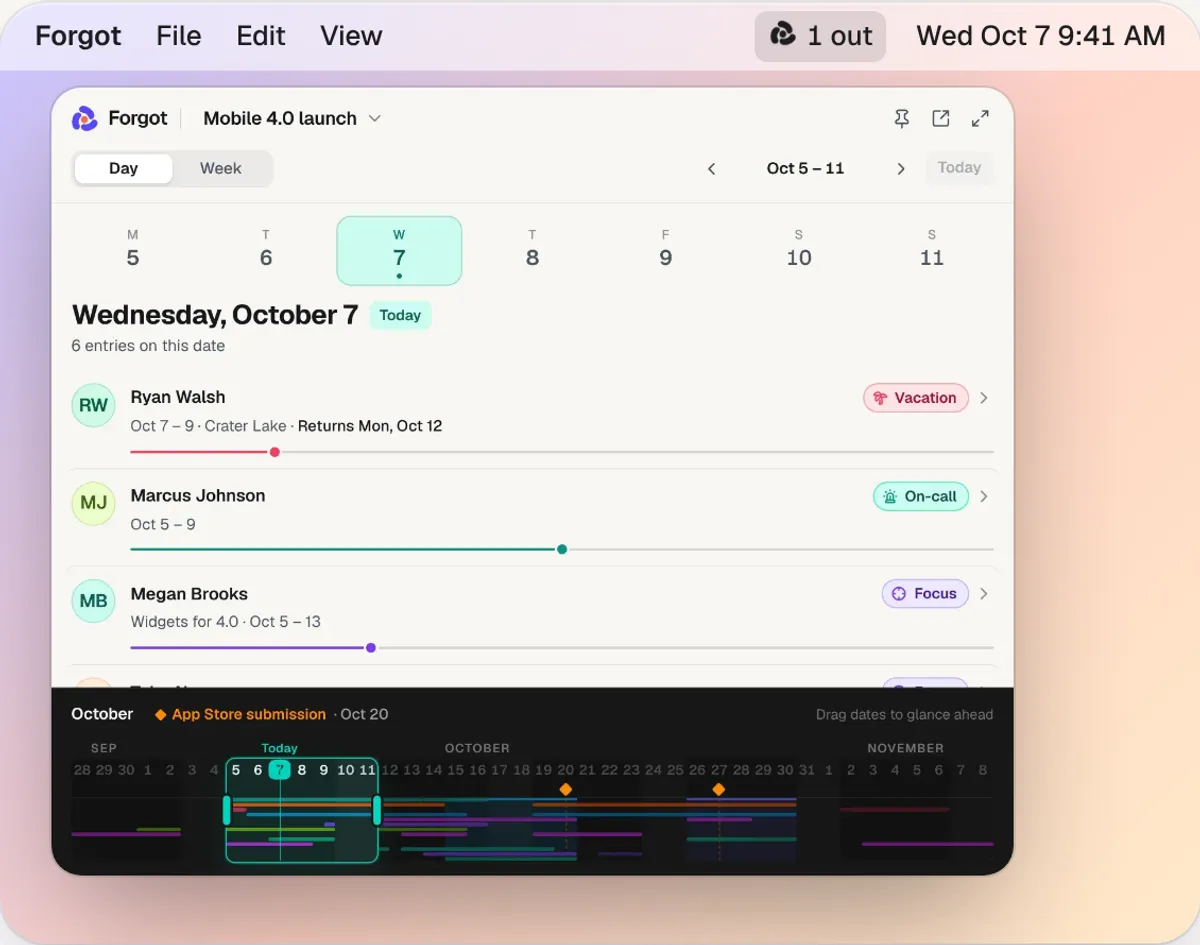
Forgot for Mac is ready to download at forgot.dev/mac. It puts a count of who's out today in your menu bar, like “2 out”, and opens today's plan in one click.
Day and Week in the glance. See who's away, on call or on a project, and when people are back. Drag in a vacation or move a bar without opening a browser.
Pin it, resize it, expand it. Keep the glance open in a meeting, or grow it into a big panel under the icon.
Its own window. The full calendar reopens where you left off, with ⌘N, ⌘Z and Open at Login.
Included. It works during your free trial and your license covers it. The page has the four install steps, including the one-time Open Anyway step macOS asks for.
Oct 7, 2026New
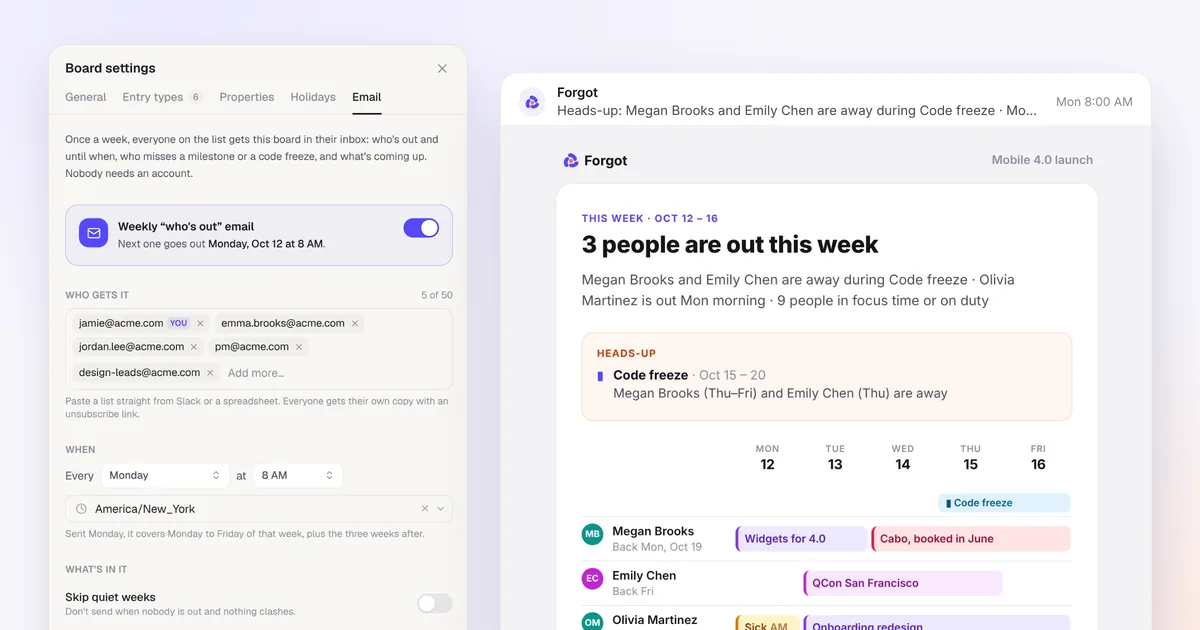
A weekly “who's out” email for the whole team
Forgot can now email your board to the people who need it, every week at the hour you pick: who's out and until when, who misses a milestone or a code freeze, and what's coming up in the next three weeks. Nobody needs an account to read it.
Send it to the whole team. In board settings, Email, add up to 50 addresses, or paste a list straight from Slack or a spreadsheet. Everyone gets their own copy with a one-click unsubscribe, and replies come to you.
Clashes come first. When someone is away on a milestone or during a code freeze, a heads-up box says so at the top, and the subject line says it too.
Your day, your hour, your time zone. Monday morning covers the week you're in. Sent on a Friday, it covers the week ahead. Turn on Skip quiet weeks and nothing goes out when nobody is away.
See it before they do. Preview it on desktop or phone, send yourself a test, or pick a saved view to send just one team. It's also one click away in the Share menu.
Oct 6, 2026New
Public holidays for 200+ countries
Forgot now knows the public holidays of 200+ countries, so a teammate in Manila or Munich shows as off on their own holidays without anyone typing them in.
Per person, from their time zone. Each person gets their country's holidays, picked from their time zone. Set a country or state by hand in their panel, or turn holidays off for them.
Counted everywhere. Holidays show on the board, in the risk line, in who is free and in when someone is back. A milestone on someone's holiday gets a warning.
Edit them for your team. In board settings, Holidays, mark a holiday as a working day, move it, or add one. Moving dates and weekend substitutes are worked out per country.
Faith and community days. Optional holidays, like St. Sava in North Macedonia or Eid, can be turned on for the people who observe them. Anyone can be marked as working a single holiday from the day panel.
Oct 6, 2026Improved
Tidy milestones and a folded name column
Two board fixes for busy release calendars.
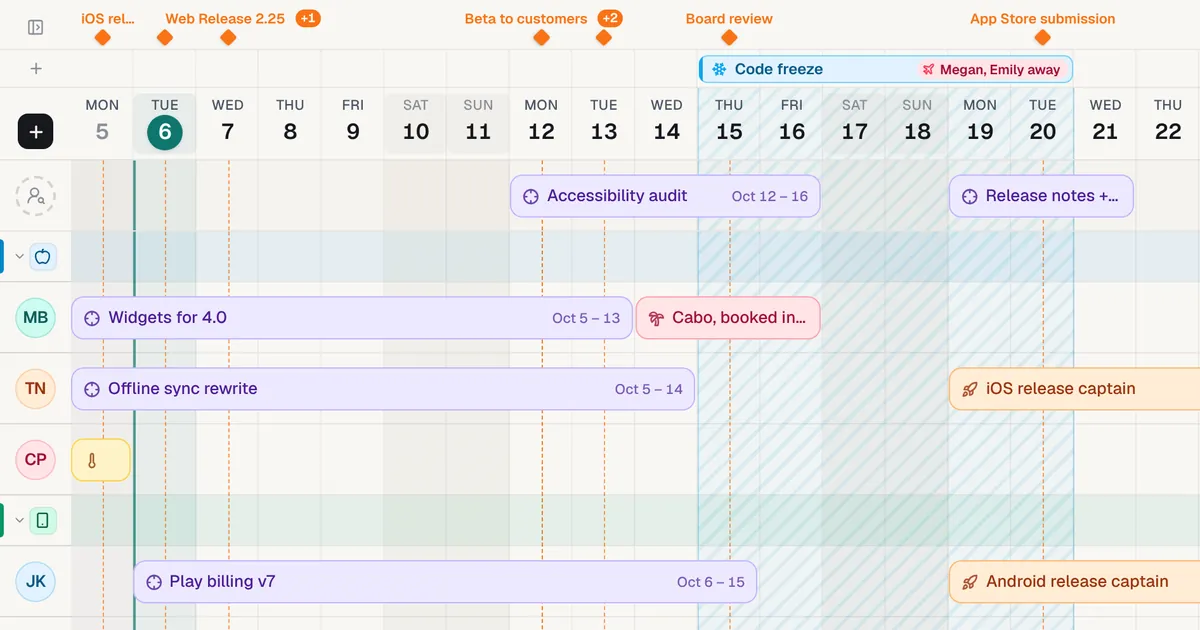
Milestones that don't overlap. Releases on days next to each other each keep a readable label. When labels are too close to fit, they merge into one, like "Web Release 2.25 +1", and clicking it lists every milestone with its date.
Fold the names to avatars. The panel button next to Milestones shrinks the name column to avatars, so the days get more room. Hover an avatar to see who it is. Your browser remembers the choice, and it works on share links too.
Oct 6, 2026New
Export and import a board
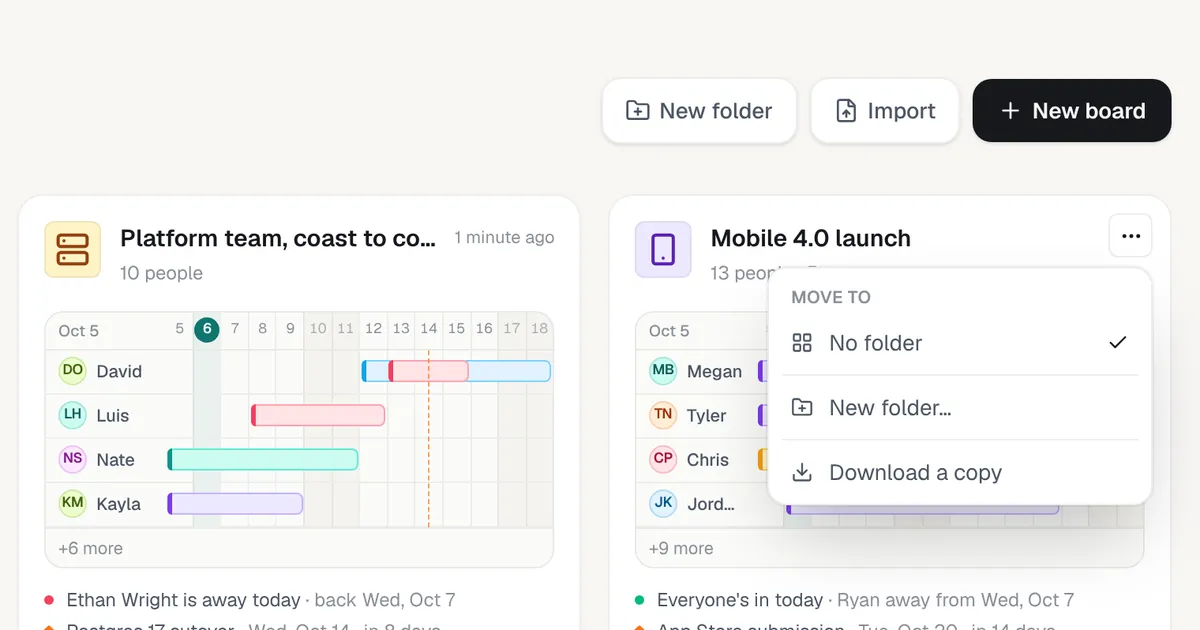
You can now download any board as a file and import it as a new board, in your account or a teammate's.
Download a copy. From a board card's menu or Board settings. The file has everyone, their bars and notes, milestones, team-wide periods, teams, types, properties and saved views.
Import. Click Import on your boards page, or "Import it" when making a new board, and the copy opens ready to edit. Your original stays as it is.
Copy a shared board. Anyone with a share link can click Copy to my Forgot and get their own editable copy, after signing in or starting a free trial.
Keep a backup. Downloading works even after your trial ends, so your plans are always yours.
Oct 6, 2026New
Every icon, and emoji
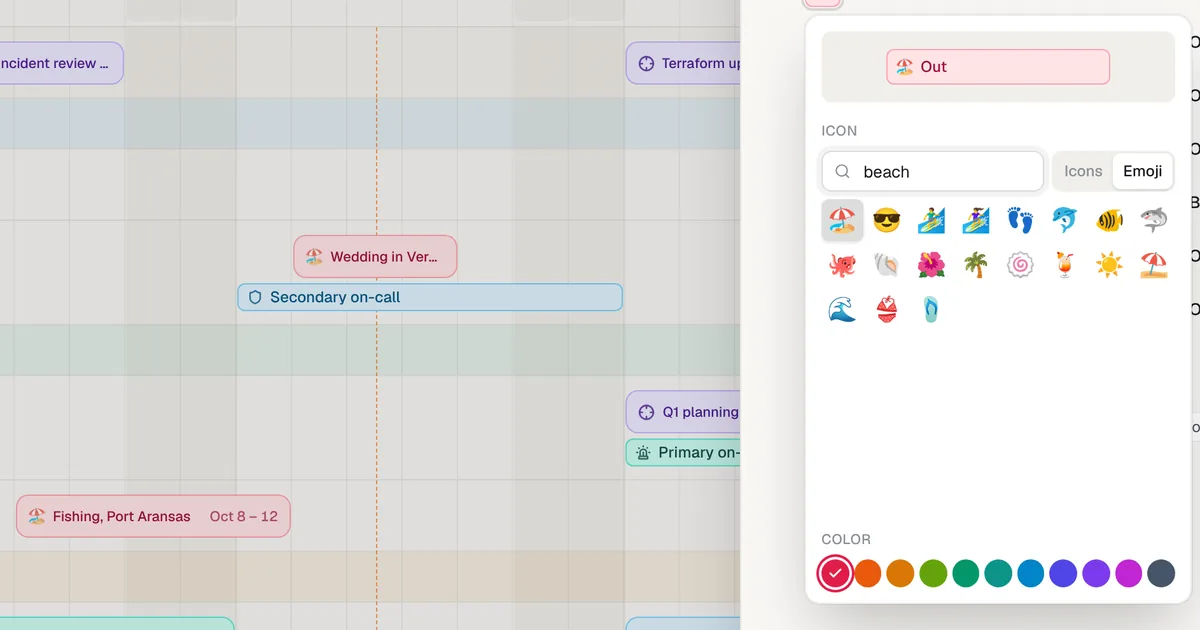
Teams, entry types and property options can now use any of 1,600 icons, or an emoji.
Search the whole icon set. The picker still opens on the icons that fit, then lists every Lucide icon by section, like Travel, Health, Animals or Food & drink. Type a word to find one.
Or pick an emoji. Switch to Emoji for 1,800 emoji with search, or paste one straight from your keyboard. It shows on bars, team headers, filters and the Mac app.
Teams get the same picker. The team panel now has search, emoji and the full set too.
Oct 6, 2026New
Saved views
Save who a board shows, like only the mobile team, and switch between views in one click.
Filter by anything on the board. Press Filter and pick teams, locations, any select property like Project or Seniority, or single people. Each choice shows how many people it covers.
Save it as a tab. Name the filter and it sits under the top bar next to Everyone, with a count of who it shows. Edit, rename, reorder or delete a view from its menu.
The warnings follow the view. The warning badge, the day panel and the faces on code freezes only count the people in the view you are looking at.
Share a view. Open a view, then Share: the link opens on that view, and the people you send it to can still switch to everyone.
Oct 6, 2026New
Code freezes, release weeks and offsites
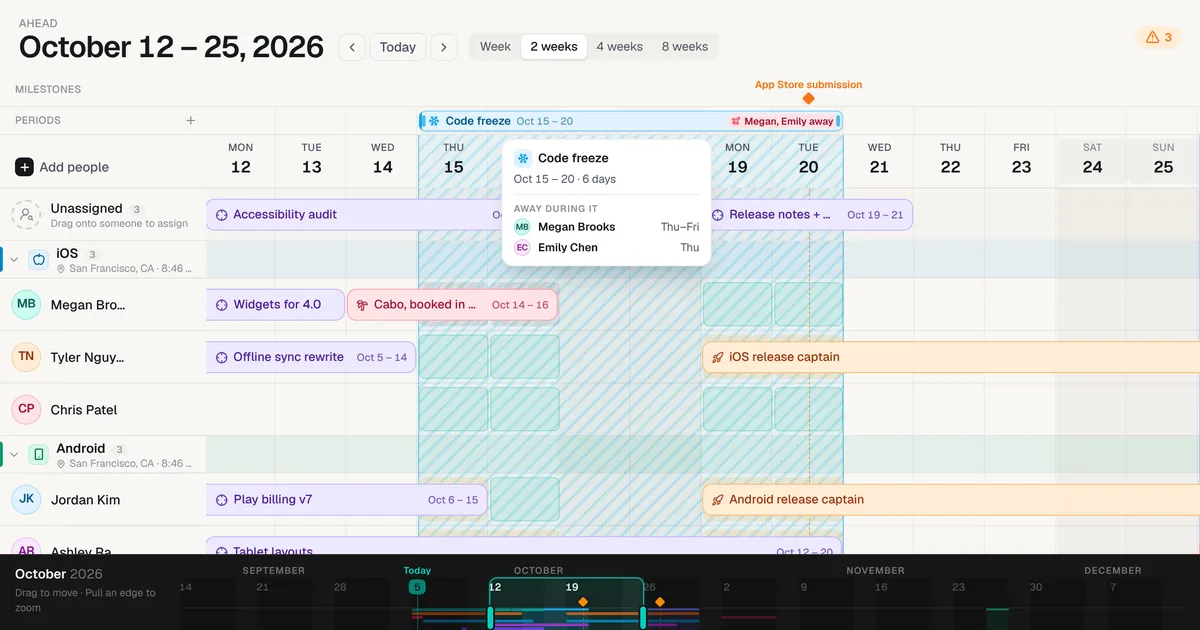
Mark a stretch of days for the whole team, like a code freeze or a release week, and see who is away during it.
Drag across the dates. Drag over the day headers, or the new Periods row, and pick Code freeze, Release week, Offsite, Company holiday or Event. Keys 1 to 5 pick one too.
See who is out. A period shades the whole board, and its label names who is away, like Megan, Emily away. Hover it to see which days each person is gone.
Warnings where you already look. The warning badge now says when someone is away during a code freeze or a release week, and the day panel shows which day of the period it is.
Company holidays read like weekends. Nobody gets flagged for being off when everyone is off.
Wherever your board is. Periods show on share links and in the Mac app's menu-bar glance.
Oct 5, 2026Improved
Links in bar notes
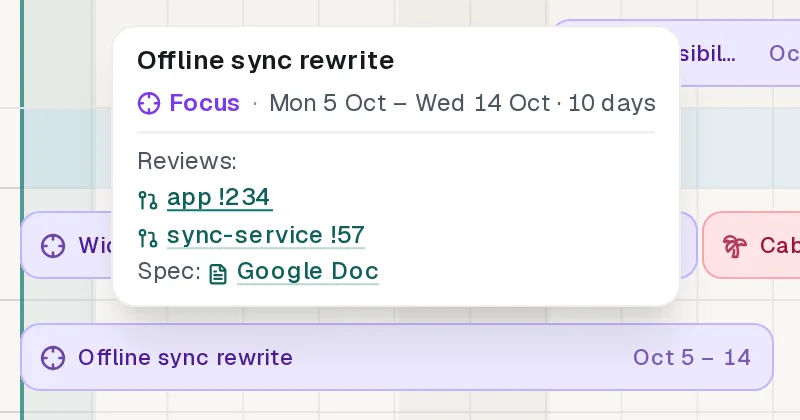
Paste links into a bar's note and they now read like links, not a wall of URL.
Line breaks stay. Each line of a note shows on its own line. Paste several links at once and they go one per line.
Short, clickable links. Merge requests, pull requests, Jira and Linear issues, Google Docs and Figma files show their short name, like
app !234orWEB-123. Hover a bar and move onto its card to click one.Name your own. Select some text in the note and paste a link over it, or write
[name](link).
Oct 5, 2026New
Folders and recent boards
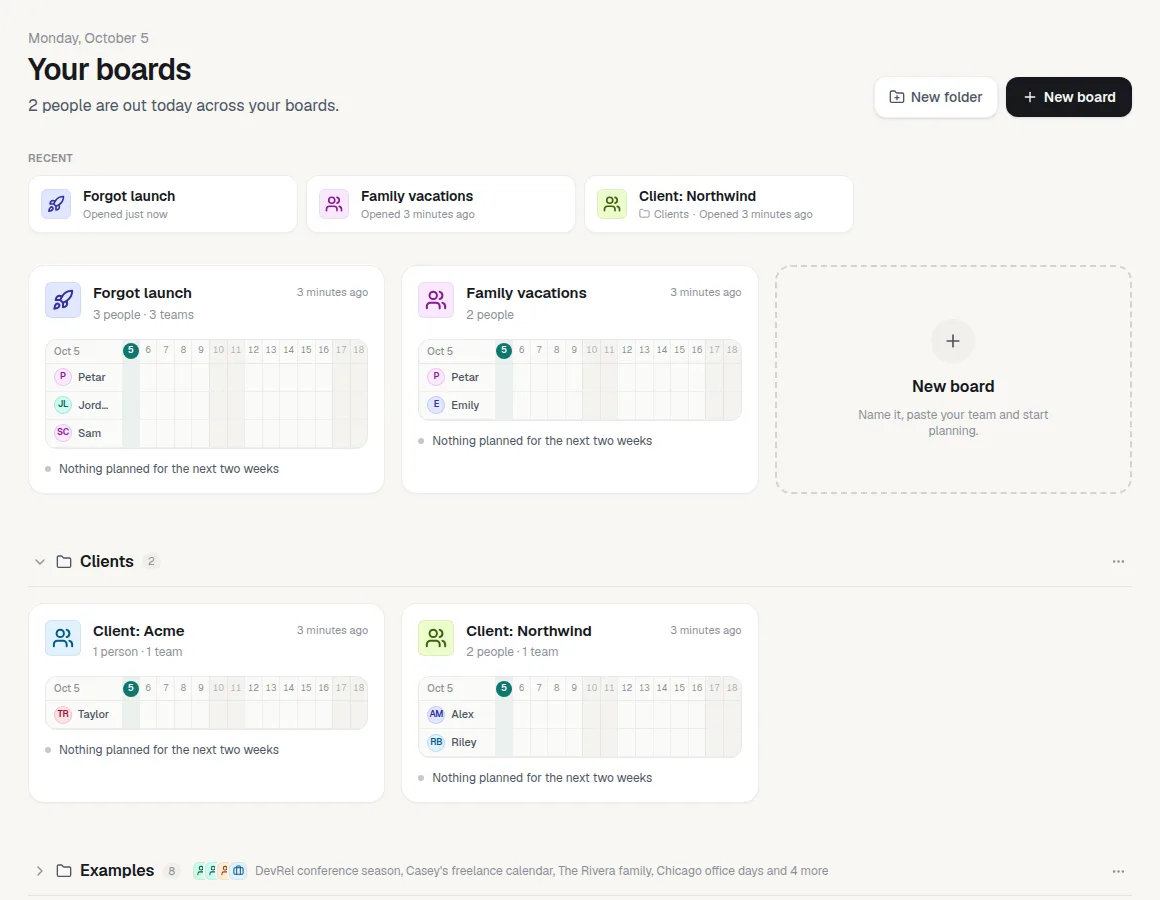
Once you have more than a handful of boards, the boards page gets long. Now you can sort it out.
Folders. Click New folder, name it, then drag boards onto it or pick Move to from a board's ⋯ menu. Folders stay in alphabetical order.
Close what you don't need. Click a folder's name to close it. A closed folder still shows what's inside, and it stays closed next time, on every device.
Recent. Once you have five or more boards, the last four you opened sit at the top of the page.
The board switcher knows too. The menu next to a board's name groups boards by folder.
Deleting a folder never deletes a board: its boards just go back to the main grid.
Oct 5, 2026Improvement
Roomier board settings
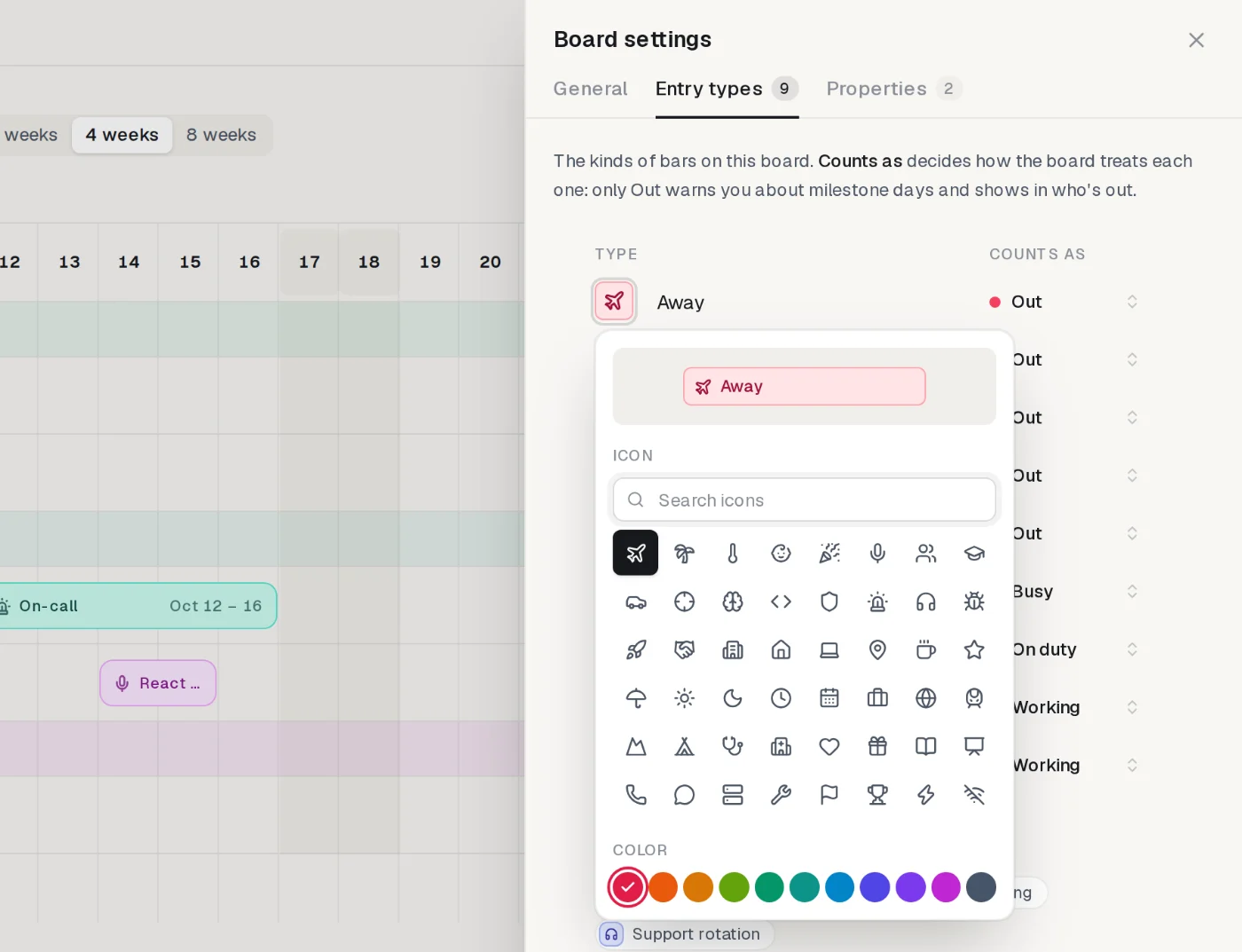
Board settings had outgrown its narrow sidebar, so we rebuilt it.
Room to work. The panel is wider and split into General, Entry types and Properties tabs. It opens on the tab you used last.
An icon picker that floats. Click a type's icon to pick a new icon and color in a card next to it, with a live preview, instead of the list jumping down. Search finds icons by what they mean, so "doctor" finds the stethoscope, and there are 24 new ones like umbrella, sun, briefcase and train.
Clearer "Counts as". Every choice now says what it does to the board. Only Out warns you about milestone days and shows in who's out.
Tidier rows. Drag types and options into order. Move and delete live in a "…" menu, and deleting a type tells you what happens to its bars before you confirm.
Missing something in settings? Suggest it on the roadmap.